
Register visitors for specific events with a few simple steps.
NEW! We’ve made it easier for you to add people to events. You can now add attendees in bulk! Find out more in the new sections below.
View event attendees #
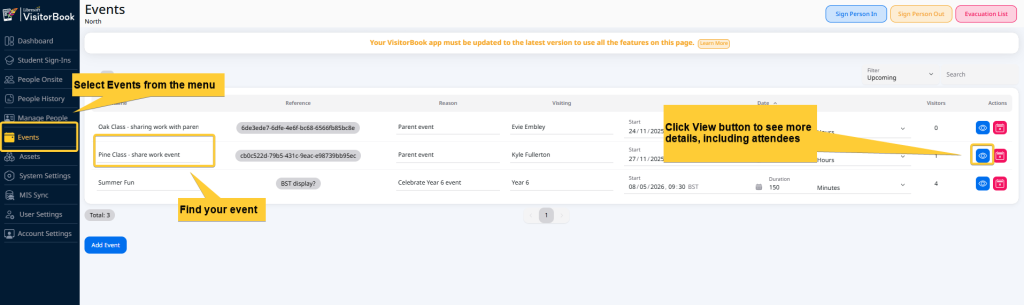
To view event attendees:
- Log into your VisitorBook Admin Portal.
- Click Events. This opens up the Events page.
- Next to the event you are interested in, click the View icon.
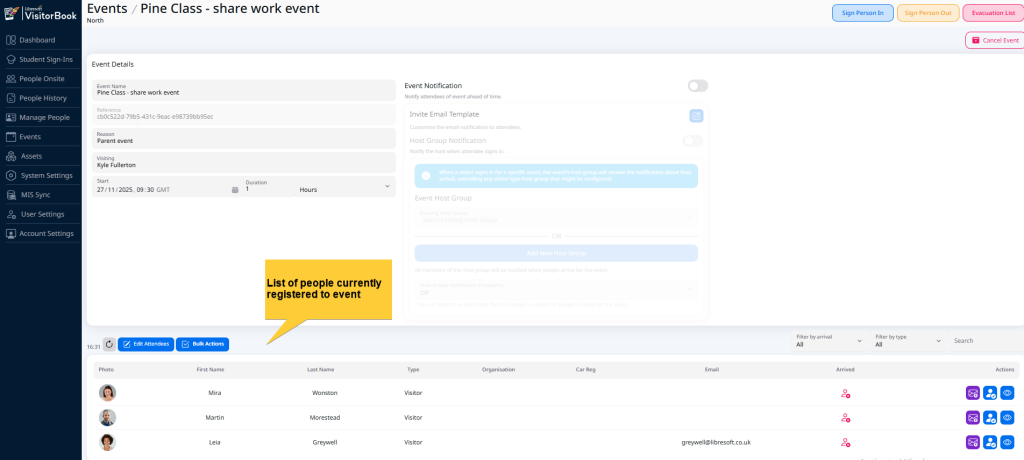
- The system opens up the page for that specific event.
- People currently registered for an event are shown at the bottom of the page.
Edit event attendees popup #
Adding or removing event attendees is managed through the Edit Attendees popup. You access this through each specific event you have set up.
Important: You will need to have created an event before you add visitors to it.
Learn more: Add an event
Important: The Edit Visitors popup gives you the opportunity to see people registered for an event or add people to an event. The process of adding people to an event does not sign them into VisitorBook. They will still need to sign in when they arrive.
To access the Edit Attendees popup:
- Log into your VisitorBook Admin Portal.
- Click Events. This opens up the Events page.
- Next to the event you are interested in, click the View icon.
- The system opens up the page for that specific event.
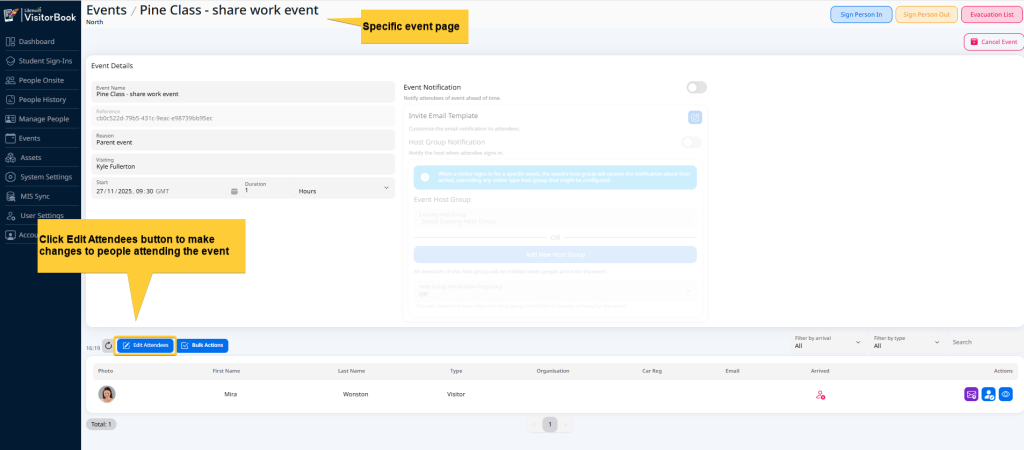
- People currently registered for an event are shown at the bottom of the [age/
- Click the Edit Attendees button.
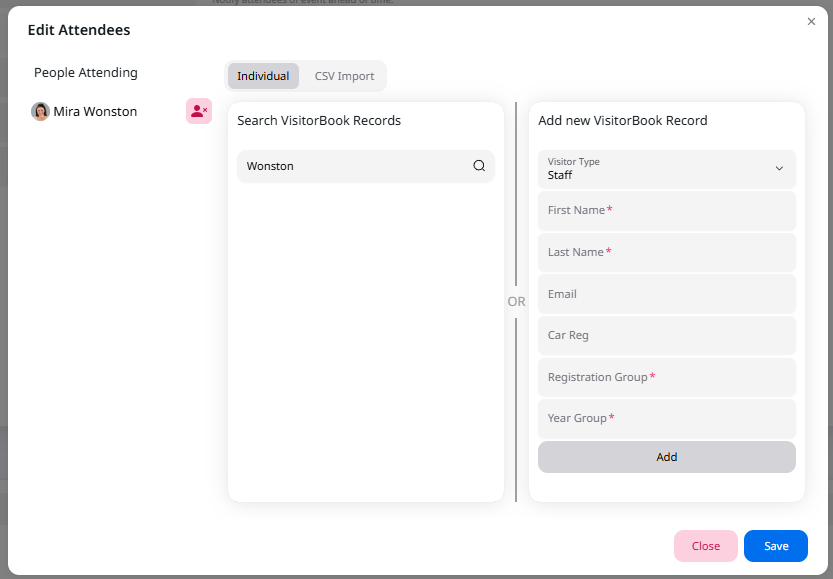
- The system opens up the Edit Attendees popup. This is organised into the following sections:
- People Attending – People currently enrolled on the event.
- Search VisitorBook Records – A search facility to find a person who has visited the organisation previously.
- Add new VisitorBook record – A section to enable you to add an entirely new visitor to the event.
Each action you can take here is described in the following sections.
Add an existing person to an event #
An existing person is someone who has previously visited the organisation. If they have signed in before, they will have an existing visitor record.
On the Edit Attendees popup:
- Navigate to the Search VisitorBook Records section.
- In the search, start typing the name of the person.
- Select the person from the dropdown list.
- The person is added to the People Attending list on the left-hand side of the popup.
- Click the Save button.
Important: You must click the Save button to add the attendees. If you close the Edit Attendees popup or navigate away from it without first clicking Save, the attendees won’t be added.

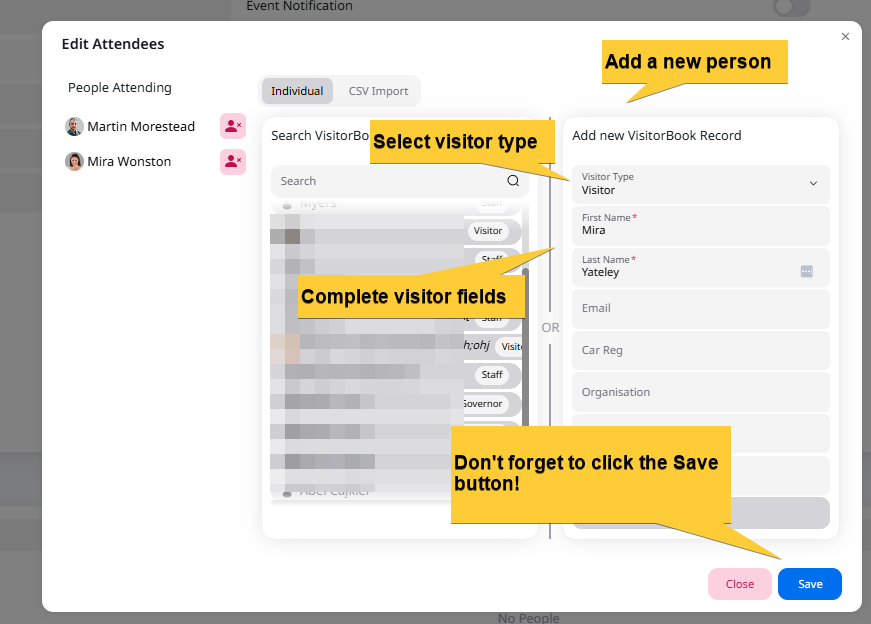
Add a new person to an event #
A new person is someone who has never visited the organisation before. They will not have an existing VisitorBook record.
On the Edit Attendees popup:
- Navigate to the Add New VisitorBook Record section.
- Select the correct Visitor Type from the dropdown.
- Complete the visitor fields. Those marked with an asterisk are essential and must be filled in.
- Click the Add button. This adds the person to the People Attending list on the left-hand side of the popup.
- Click the Save button.
Important: You must click the Save button to add the attendees. If you close the Edit Attendees popup or navigate away from it without first clicking Save, the attendees won’t be added.
Remove a person from an event #
On the Edit Attendees popup:
- Navigate to the People Attending section.
- Click the Remove Attendee icon.
- The person is removed from the People Attending list.
- Click the Save button.
Important: You must click the Save button to remove attendees. If you close the Edit Attendees popup or navigate away from it without first clicking Save, the attendees won’t be removed.

Import event attendees in bulk #
NEW! You can now upload multiple attendees with one CSV file and a few simple steps.
Import behaviour – matching records #
During the import process, the system looks for any matches with existing VisitorBook records. The match is made based on email address and visitor type. Essentially, if a match cannot be made with either the email address or the visitor type, then a new record is created.
| Matched | Not Matched | Result |
| Name Email address Visitor type | None | VisitorBook uses the existing record. |
| Email address Visitor type | Name | VisitorBook uses the existing record with the name that is already attached to that record. You’ll need to update the record on the Manage People page if it’s incorrect. |
| Name Email address | Visitor type | VisitorBook creates a new record for the person. |
| Name Visitor type | Email address | VisitorBook creates a new record for the person. |
Create a CSV file of attendees #
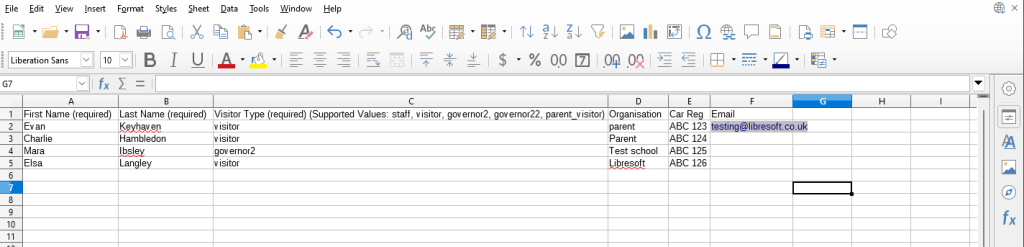
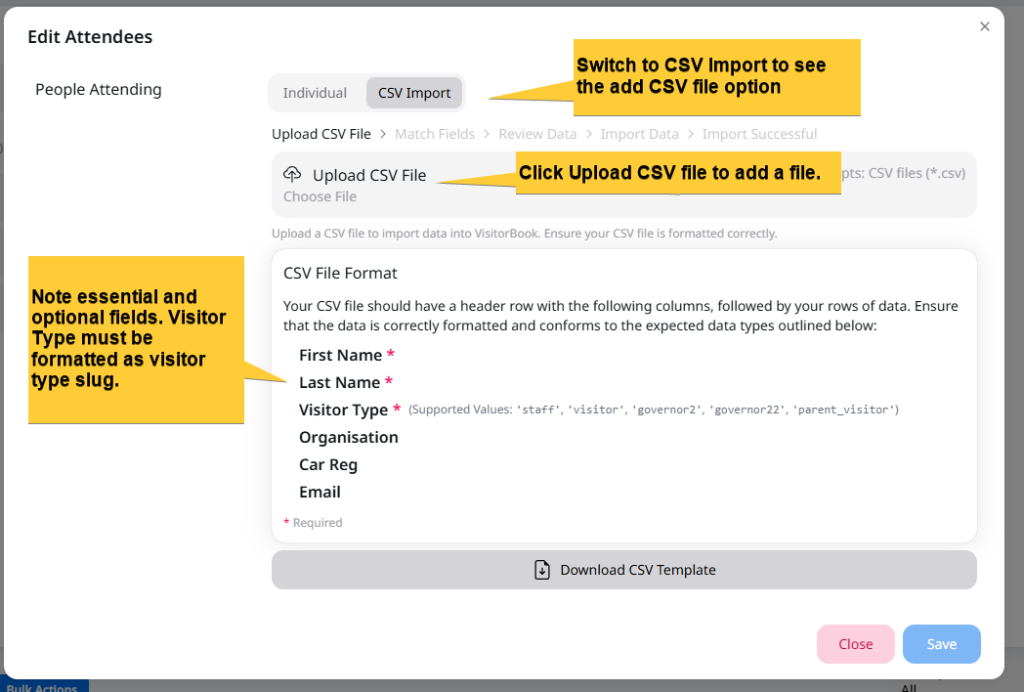
First, create your CSV file. The CSV file should have the following column headings. The headings in bold type are essential fields and cannot be omitted from the file.
- First Name
- Last Name
- Visitor Type
- Organisation
- Car Reg
Second, save your CSV file on your device, ready for upload.
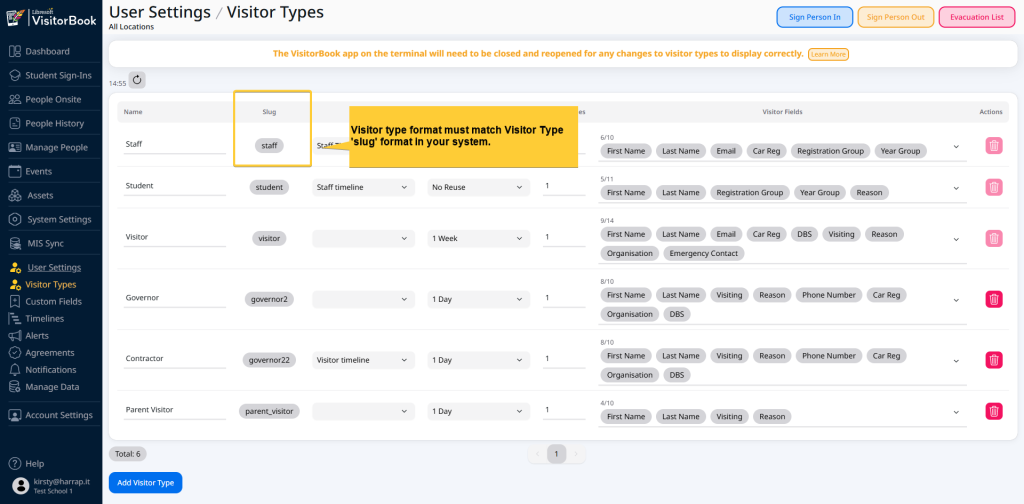
Important: The format of the visitor type must be an exact match to the Visitor Type ‘slug’ shown on the Visitor Types page.
An example CSV file is shown below.
Tip: A template CSV file is provided in the system.
Upload the CSV file #
Once your file is ready, you can import it. The table below describes the steps to take and what the system will do at each step. Please read the important notes!
| Step | System action | Notes |
| Click the Edit Attendees button. | The system opens up the Edit Attendees popup. | |
| Select the CSV option from the button group. | The Edit Attendees popup changes appearance to become a CSV import tool. | |
| Click in the Upload CSV File section. | The system opens your File Explorer (or other file management system). | |
| Select your CSV file. Click Open. | The system adds the file and moves to the Match Fields element. | |
| Match the fields in the CSV file to VisitorBook fields by selecting them from the dropdown. | Matching is an essential step. First Name, Last Name and Visitor Type are essential and MUST be matched. Take care here to check you are matching the fields correctly. | |
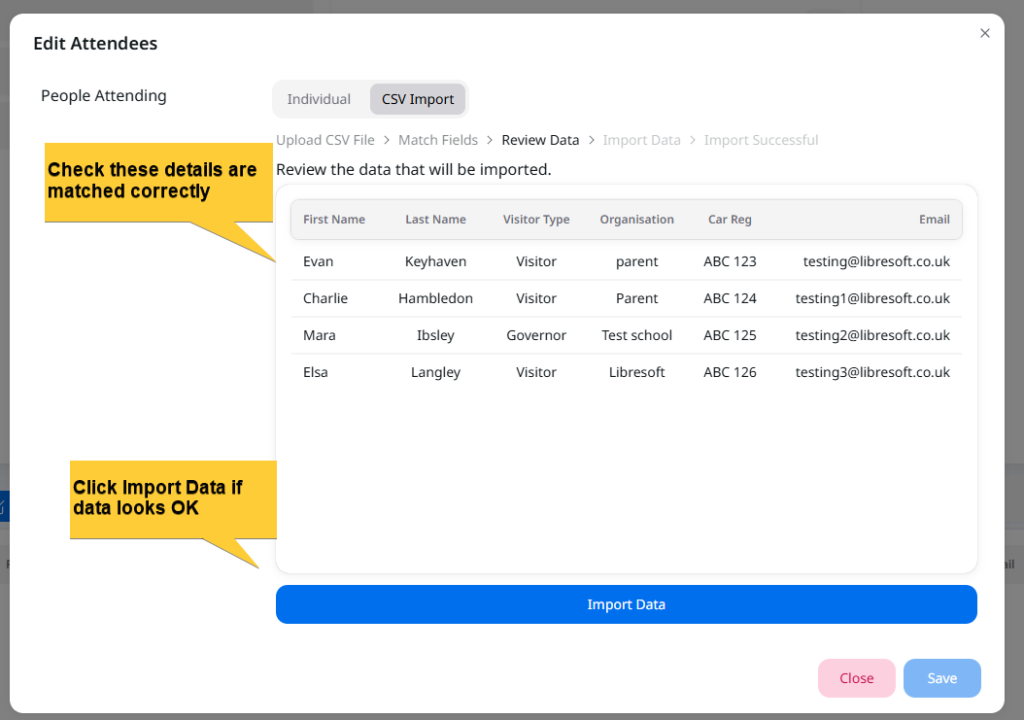
| When you have matched the fields, click the Review Data button. | The system moves to the Review Data step and shows you the data that will be imported. | Check data carefully to ensure it is matching as expected. |
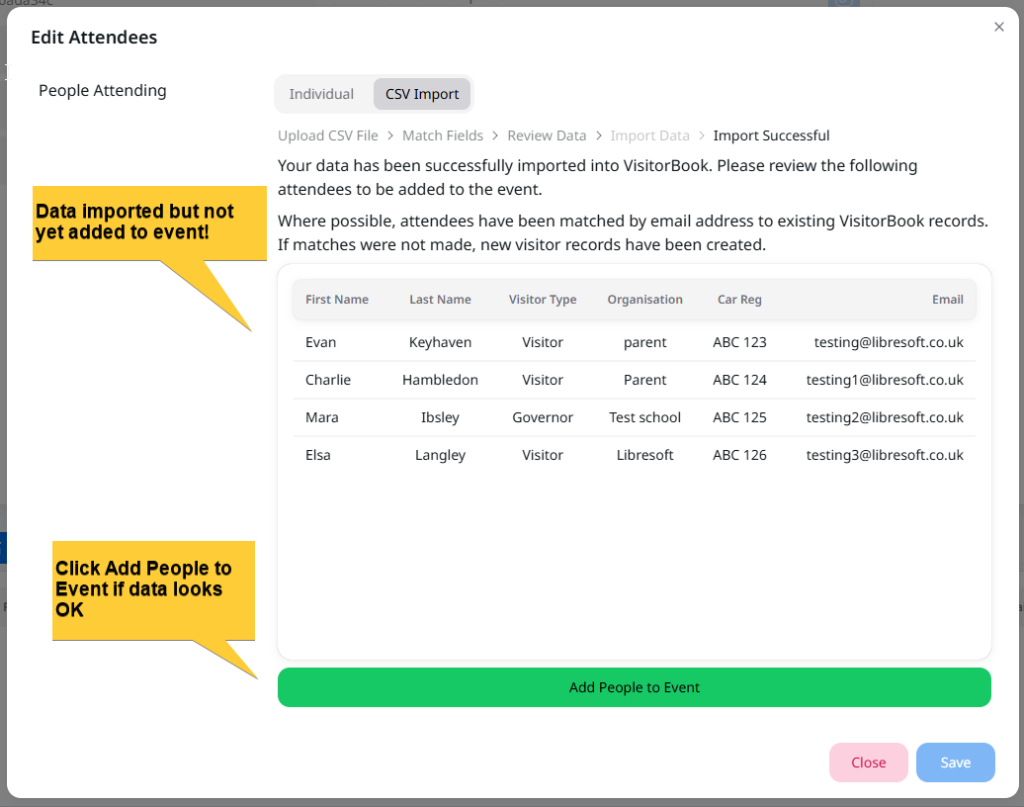
| Click the Import Data button. | The system moves to the Import Successful step and shows you the data that has been imported. | Important: Don’t click away yet! There are a couple more steps to do! Also important: Where possible, the system will attempt to match imported data with existing VisitorBook records, based on email address. If it cannot match existing data, it will create a new record. Given the import behaviour (noted earlier), it is essential you check the data matches your expectations here. |
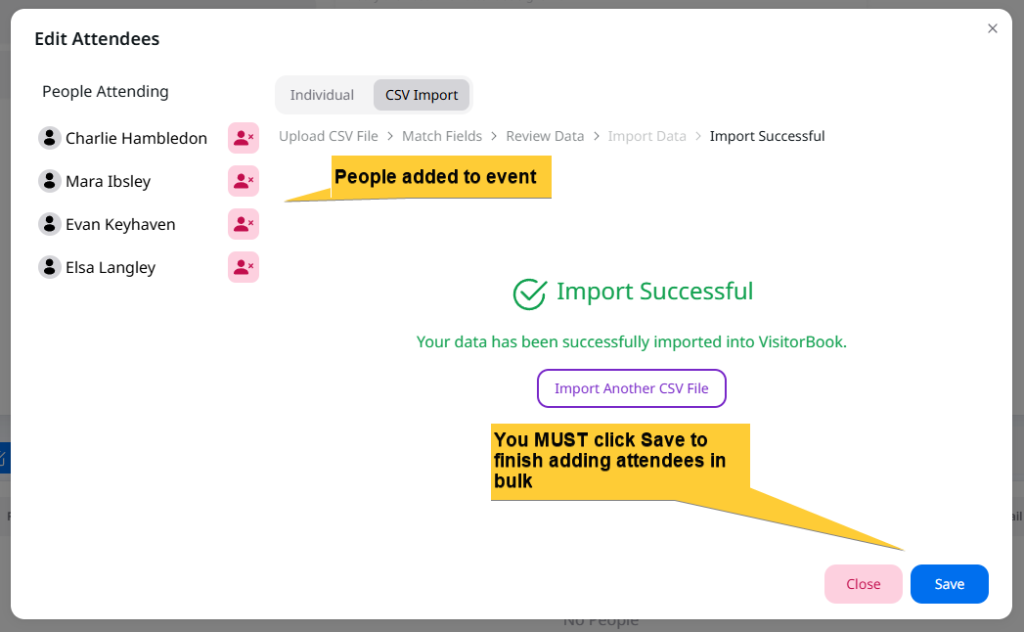
| Click the Add People to Event button. | The system moves the imported attendee data to the list of People Attending. | Important: Don’t click away yet! There’s a final step! |
| Click the Save button. | The system closes the Edit Attendees popup and adds the attendees to the list at the bottom of the page. | This is an essential step. |

© Libresoft 2025