
NEW! Connect NFC cards to visitors in a few steps. You do this on the VisitorBook app on a terminal set up as a staff terminal.
Before you begin #
You will need:
- To have connected the NFC reader to a VisitorBook staff terminal.
- To have both the NFC reader and staff terminal to hand.
- To have the QR codes for the visitors to hand.
Important: Wondering why you still need the QR code? This is how VisitorBook identifies the specific visitor record. It helps you make sure you are linking the NFC card to the correct person.
Tip: Easily print QR codes from the Manage People page on your VisitorBook Admin Portal. You can filter the page to show specific groups of people (e.g. staff) or narrow this down further to only print codes for specific people.
Link NFC card/fob to visitor #
To do this:
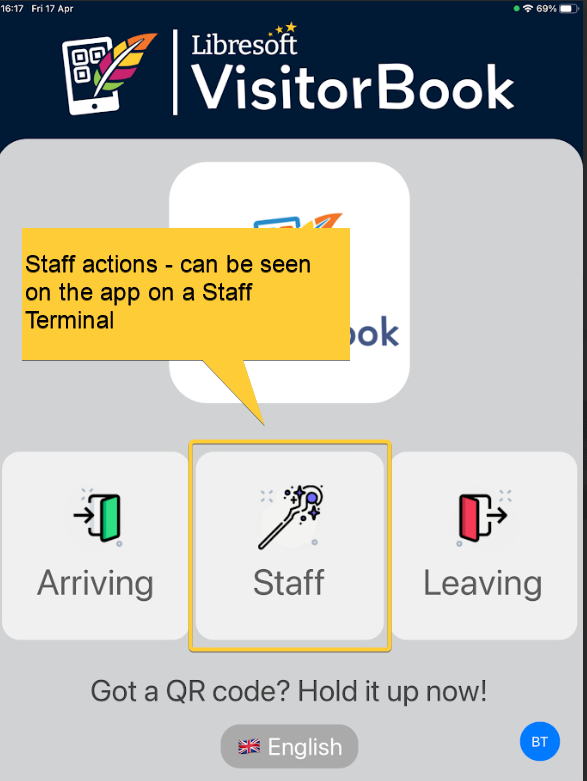
- Open the VisitorBook app on a staff terminal.
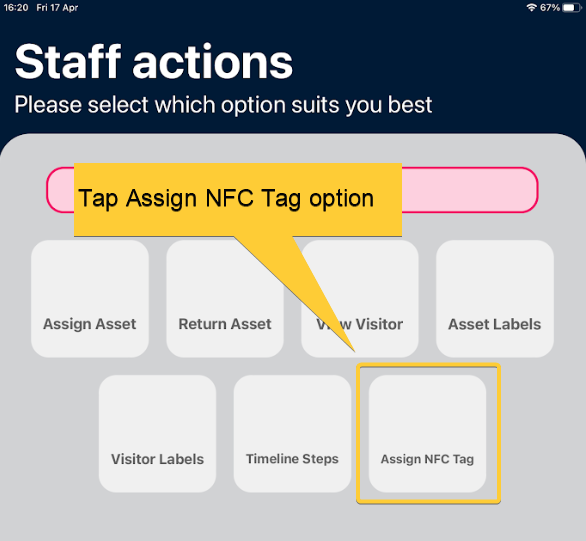
- On the Home page, tap Staff to open the Staff Actions menu.
- Tap the Assign NFC tag option.
- Scan the person’s existing QR code.
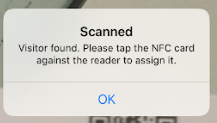
- VisitorBook tells you the person is found. Tap OK.
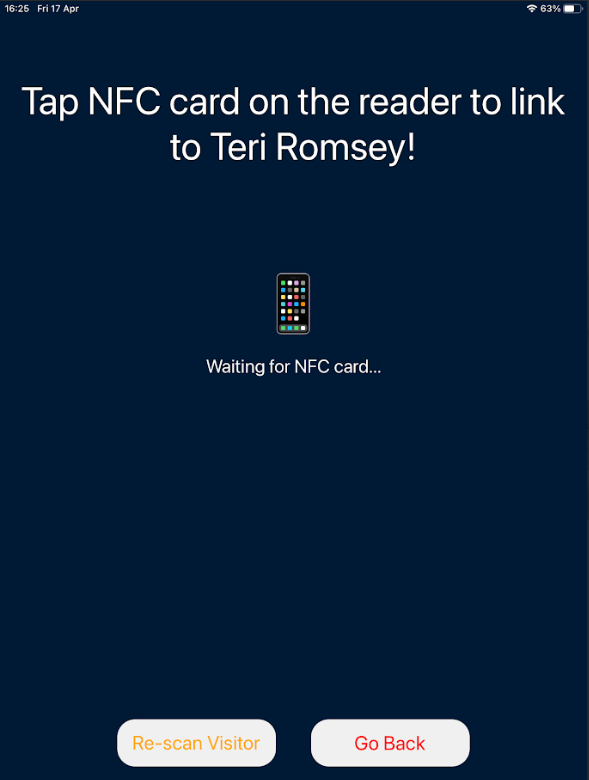
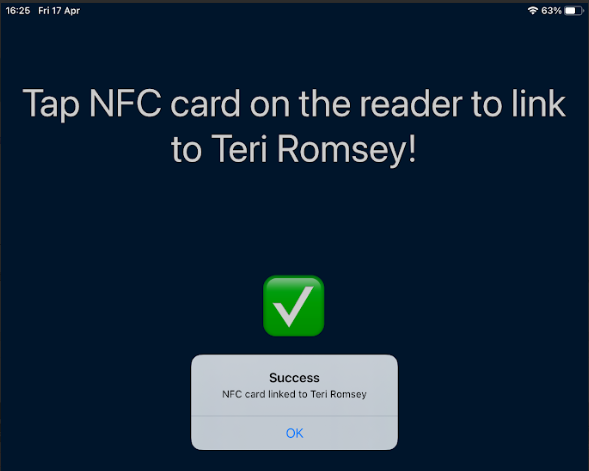
- Tap the NFC card or fob on the NFC reader. VisitorBook tells you who the card is going to be assigned to.
- VisitorBook tells you the card is linked to the person.
© Libresoft 2026