
NEW! Don’t need visitor photos? Set the VisitorBook app to skip the photo step.
Set up Skip Photo #
To skip the photo step:
- Log into your VisitorBook Admin Portal.
- Go to User Settings > Visitor Types.
- Here you will see the list of visitor types set up on your system. These are the types visitors see when they sign in on the terminal.
- Choose your required visitor type and look at the Photo Required column. By default, photos are required when visitors sign in. The system shows this with a filled camera icon.
- Click on the photo icon to make the square blank. This means the photo step is skipped.
- Go to the sign-in terminal. Close and reopen the VisitorBook app.
Tip: The Photo Required setting is set up for each visitor type. You can require a photo for certain types of visitors and skip it for others.
Important:
- You must close and reopen the VisitorBook app on the sign-in terminal to update the settings.
- Have the Student Sign-In module? The app does not take photos when students arrive late or leave early. You won’t be able to set the app to take photos of students.
In the image below, the administrator has chosen to skip the photo step for staff members and school governors. Photos are still required for visitors and contractors.
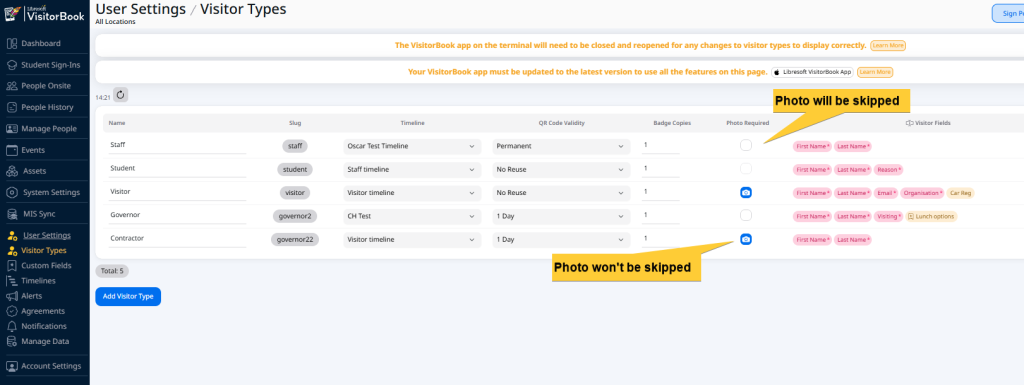
How the app works with the photo skip setting #
The app will simply skip the step where it usually takes a photo of the visitor. A label will still be printed with a blank space where the person’s photo would usually appear.
© Libresoft 2026