
Plans cancelled? Send a cancellation alert to all attendees direct from your VisitorBook system.
Important: You cannot send a cancellation alert to selected people. If sent, the alert goes to everyone who was listed as attendees.
You have two options:
- Send cancellation notification when cancelling an event
- Send cancellation notice after cancelling an event
Send cancellation notification when cancelling an event #
You can send a cancellation alert during the process of cancelling an event.
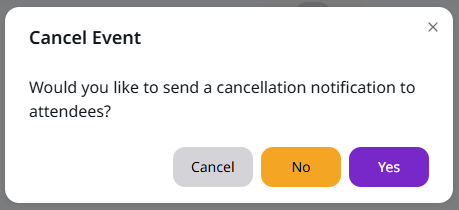
- During the process you will be asked whether you want to send the notification now.
- If you click ‘yes’, the system opens the Cancellation Email template. A template email is provided but you can edit this if you’d prefer.
- A What You See Is What You Get (WYSIWYG) editor makes editing easier. Edits are made as you type and you can preview the notification.
Tip: The default cancellation notification is set up to use dynamic content. These are auto-populated fields, such as the visitor’s name, the event name and date, and your organisation.
Learn more: Cancel an event
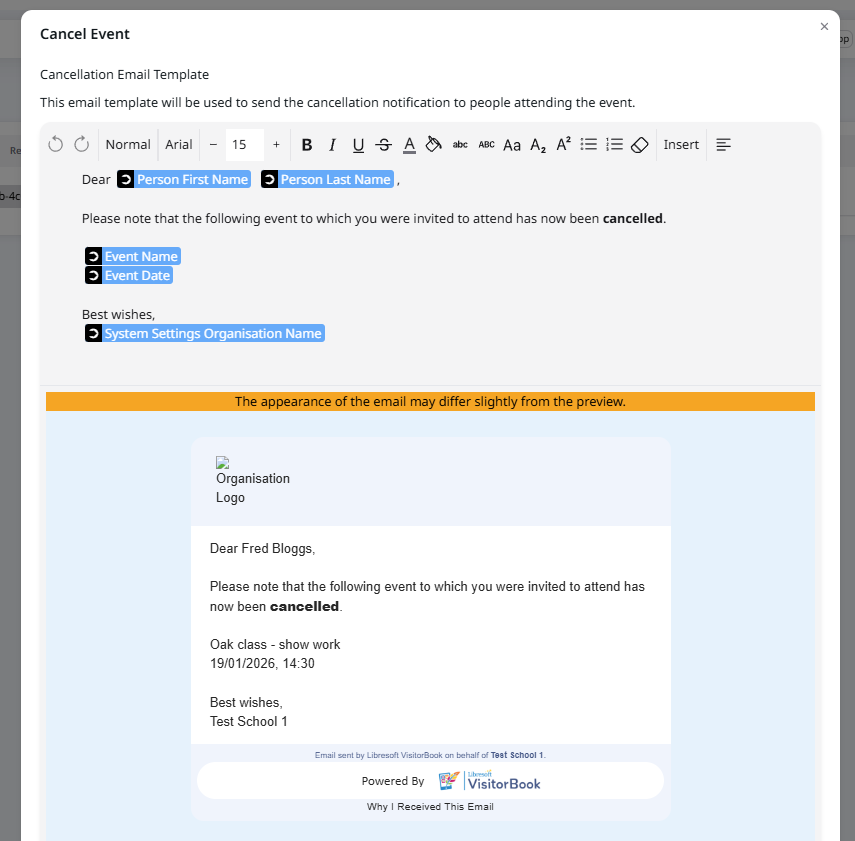
Once the notification is as you’d like it, click the Send Cancellation Notification button to send the notification to all attendees. At the same time, the event is cancelled and removed from the Upcoming Events view.
Important: At busy times, emails may not be sent immediately but will be queued to send later.
Send cancellation notice after cancelling an event #
The Events page is set to show upcoming events by default. When events are cancelled they are immediately removed from this view. To still see cancelled events, adjust the filter on the Events page to show cancelled events. This filter is located near the top of the page.
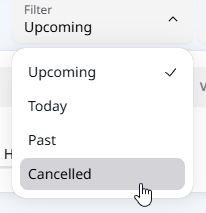
To send a cancellation notification from this view:
- Find the event in the list of cancelled events.
- Click the View icon in the Actions column next to the event.
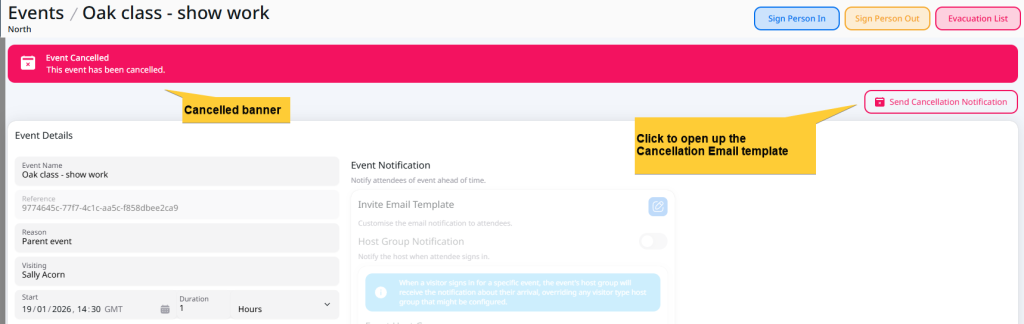
- The system opens the page for the specific event. A banner indicates the event is cancelled.
- Click the Send Cancellation Notification button located at the top-right of the page.
- The system opens the Cancellation Email Template. You can edit this template, as described in the previous section.
- When you are ready to send, click the Send Cancellation Notification button.

© Libresoft 2026