
NEW! Your welcome/farewell email templates are ready to go. To send them, you first need to assign them to visitor types.
Tips:
- Not sure how welcome/farewell emails work? If you haven’t already, check out our Overview guide.
- Make sure your email templates are set up how you’d like before you start sending them.
Learn more:
Assign email to visitor type #
- Go to User Settings > Notifications.
- Go to Configure Notifications.
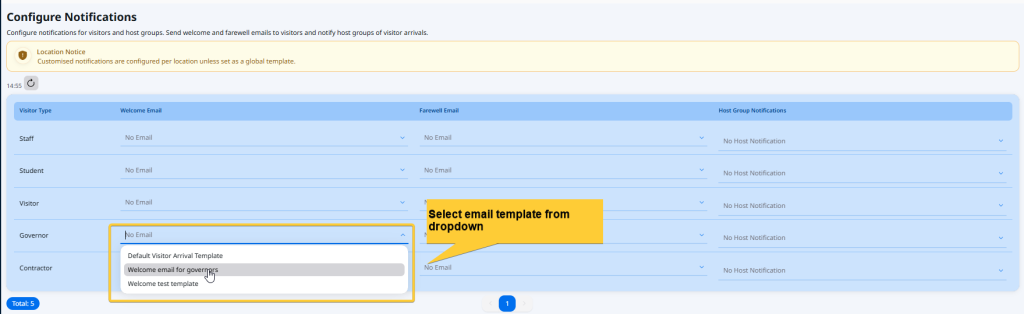
- The Configure Notifications section lists all of the visitor types in your system.
- Next to the relevant visitor type, look for the Welcome Email or Farewell Email column. Choose the email template from the dropdown.
Notes:
- The visitor types shown here as those already set in your system. These are seen under User Settings > Visitor Types.
- The available email template options shown here are set under the Email Templates section. Find this section further down the Notifications page.
Important: Email templates can only be assigned to visitor types. You cannot send a specific email to a specific visitor.
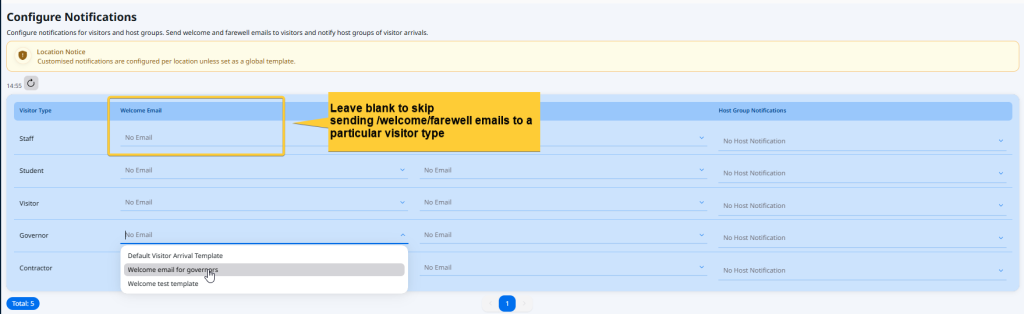
Tip: Don’t want to send a welcome or farewell email to a particular visitor type? Simply leave the welcome/farewell email field empty.
Change/unassign email from visitor type #
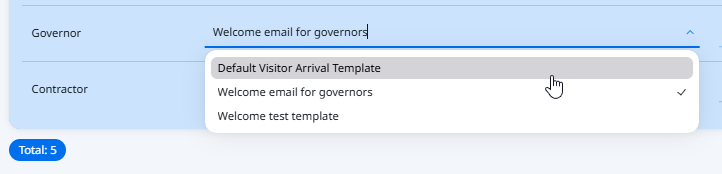
To change the email notification sent to a visitor type:
- Click on the welcome or farewell section.
- Choose a different email template from the list.
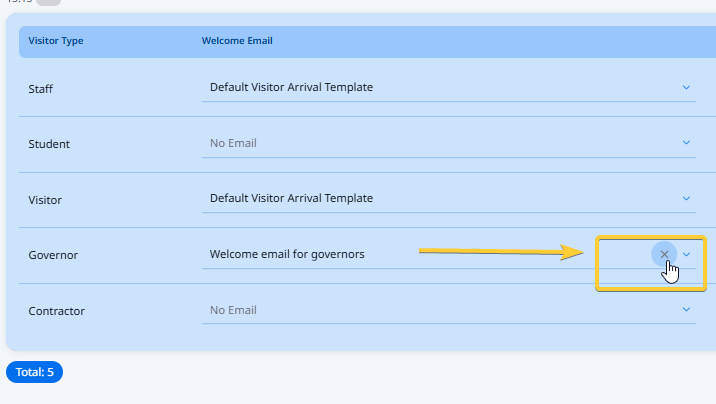
To remove the email notification from the visitor type:
- Hover over the welcome or farewell section.
- A cross appears next to the email selection.
- Click the cross to remove the email notification.
Back to Notifications
© Libresoft 2026