
Have both the optional Visitor Timelines and Assets modules on your VisitorBook system? You can choose to link timelines to asset loans!
Link asset to a timeline step #
The first step is to link an asset to a specific timeline step. To do this:
- Go to User Settings > Timelines.
- Find the timeline you wish to link with assets.
- Click the View Steps button to open up the detailed steps for that timeline.
- On the relevant step, go to the Loan Trigger column.
- Choose an asset type from the dropdown list.

Loan asset to visitor #
The second step is to loan an asset that is grouped in the asset type to a visitor. You do this via the VisitorBook app on a staff terminal, using the QR codes printed for both visitors and assets. Once you’ve loaned the asset, this automatically updates the timeline step for the visitor.
Learn more:
Example of use #
- A visitor timeline is set up.
- The second step in the visitor timeline is a factory tour.
- At the beginning of the factory tour, each visitor is going to be loaned a safety vest and a set of safety goggles. These are added as loan triggers to the timeline step.
- Asset labels are set up for the vests and goggles.
- Maya signs in as a visitor to attend an event.
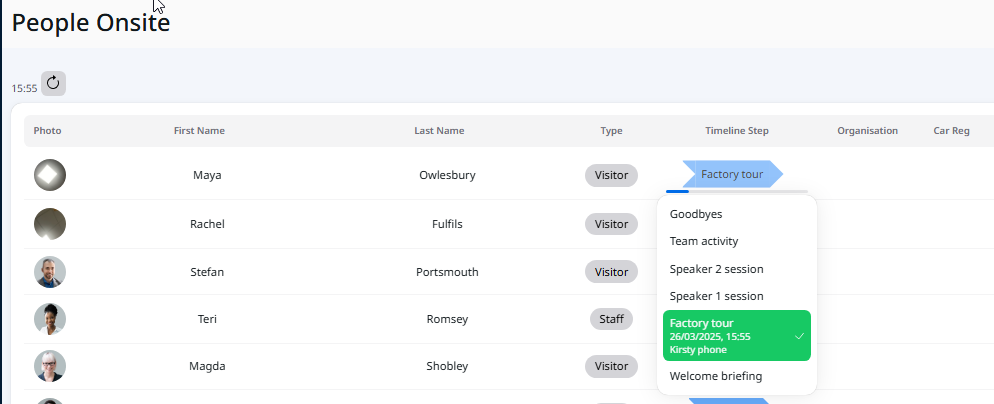
- When the tour begins, a staff member loans a safety vest and goggles to Maya. They do this via the VisitorBook app on a staff terminal by scanning the asset labels and Maya’s visitor label.
- This automatically updates the timeline shown for Maya in the Admin Portal. It also shows that the assets are on loan to Maya.
Important:
- Loan triggers are only available if the optional Assets module is turned on.
- Loan triggers are set up for asset types. Specific assets must be grouped within asset types for loan triggers to work.
Note: You can add more than one asset as a loan trigger for a particular step. However, the timeline is updated when only one of those assets is loaned.

© Libresoft 2026