
COMING SOON! Send event notification emails to visitors ahead of time. These can be sent to specific visitors or in bulk to multiple people at once.
Before you begin #
- Make sure you are familiar with how event notifications work.
- This guide assumes you have successfully navigated to the system page for your specific event.
- Toggle on Event Notifications on the event page before you start.
- Edit your event email using the template feature before you begin.
Learn more:
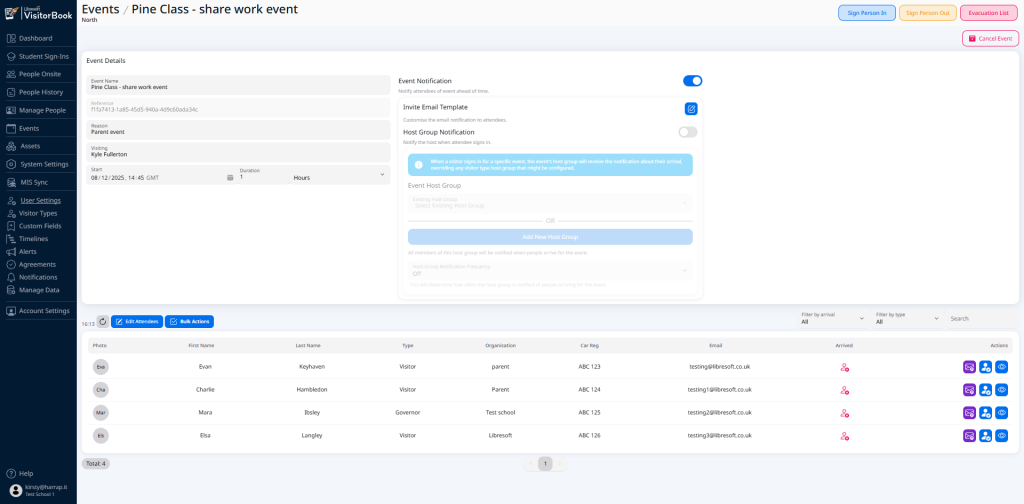
Send an event email to a specific person #
| Step | System Action | Notes |
| Go to the attendee list at the bottom of the event page. Find the person you want to send the email to. | Use the Filter by Type option or Search to find the person more easily. | |
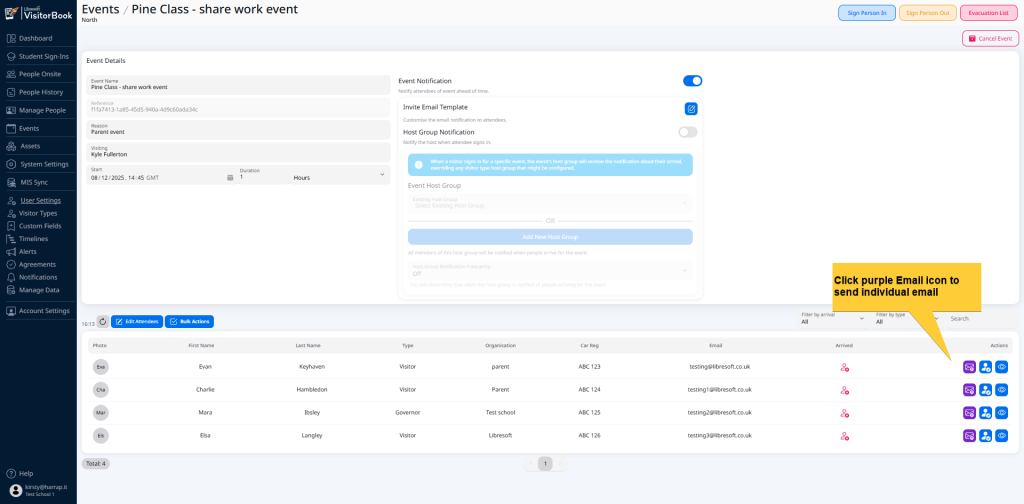
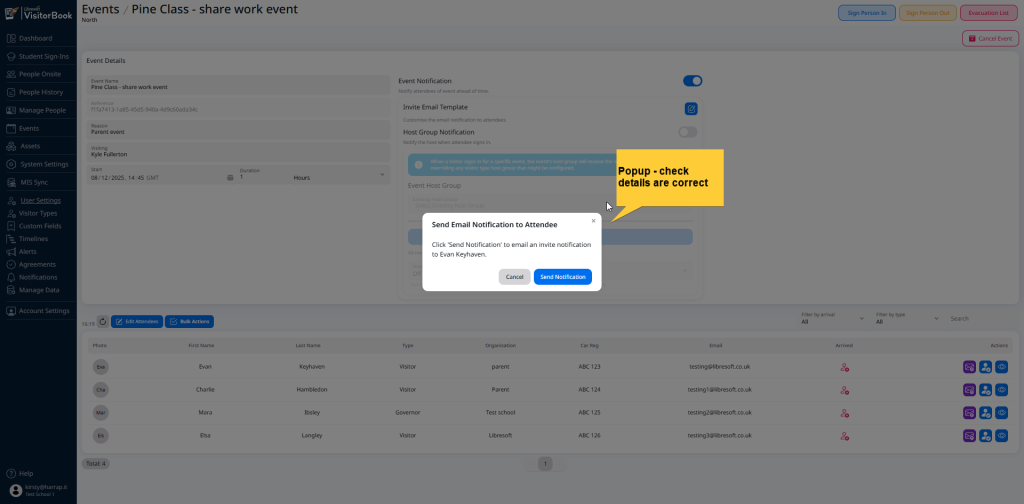
| Next to the person’s entry. click the purple Email icon (Send an email invite to this person for the event). | The Send Email Notification to Attendee popup opens. | This prompts you to check you are sending an email invite to the correct person. |
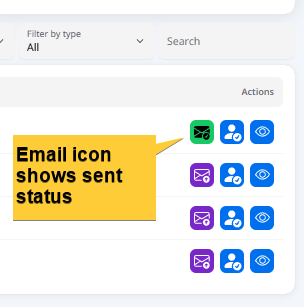
| Click the Send Notification button. | A green banner tells you the email is sending. Once sent, the purple Email icon changes to green (Email invite sent). | Sent messages are also shown in the Notification History section of the Notifications page. Find this in the User Settings menu. |
Important: At busy times, emails may not be sent immediately but will be queued to send later.
Send event emails to multiple people #
| Step | System Action | Notes |
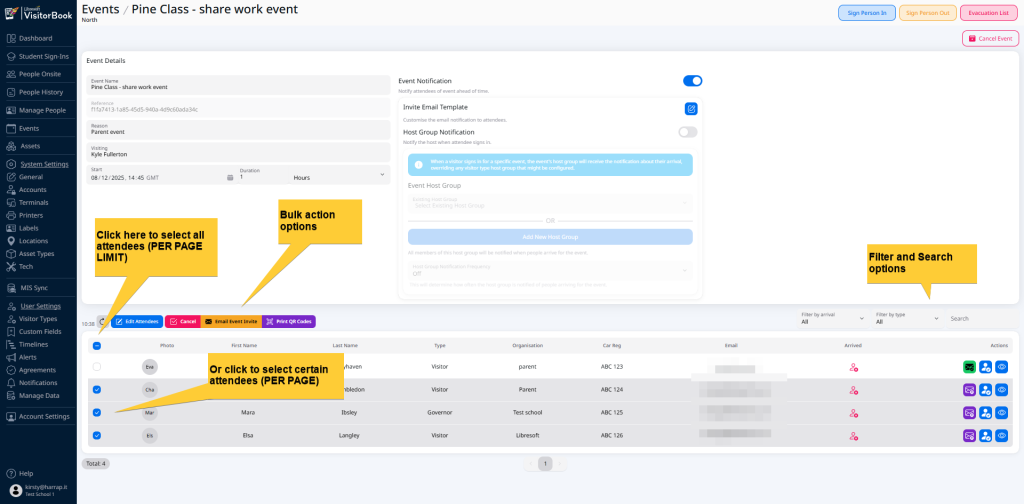
| Go to the attendee list at the bottom of the event page. | ||
| Decide who you want to send emails to. | Use the Filter by Type option or Search to find the person more easily. Important: There is a per-page limit to the attendee display. | |
| Click the Bulk Actions button. | The Bulk Action button opens to show a button group with available bulk action options. It also shows a tick box option so you can select people. | The button group options are faded out. They won’t become active until you have selected people. |
| Choose attendees. | Once you’ve chosen at least one person, the bulk action button group becomes active. | Important: Selections can only be made on a per page basis. You cannot select people across multiple pages. |
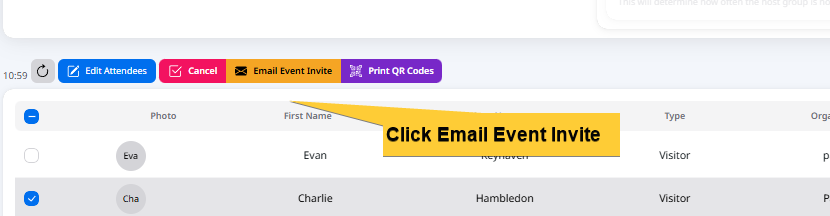
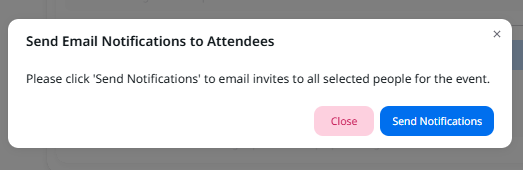
| Once you have chosen attendees, click the Email Event Invite button. | The Send Email Notifications popup asks you to confirm the action. | |
| Click the Send Notifications button. | A green banner tells you that emails are sending. Once sent, the purple Email icon changes to green (Email invite sent). | Sent messages are also shown in the Notification History section of the Notifications page. Find this in the User Settings menu. |

Important: At busy times, emails may not be sent immediately but will be queued to send later.
© Libresoft 2026