
UPDATE COMING SOON! Send event emails and sign-in QR codes to visitors ahead of time!
Sign in with a QR code #
If you’ve emailed a QR code to the visitor ahead of time, they can simply hold this up to the sign-in terminal.
Important: Visitors can only sign in using an Event QR code on the day of the event. They cannot use this code before or after an event.
Learn more:
Sign in with a Booking ID/Reference #
If you’ve sent the visitor a unique event reference, they sign in as follows:
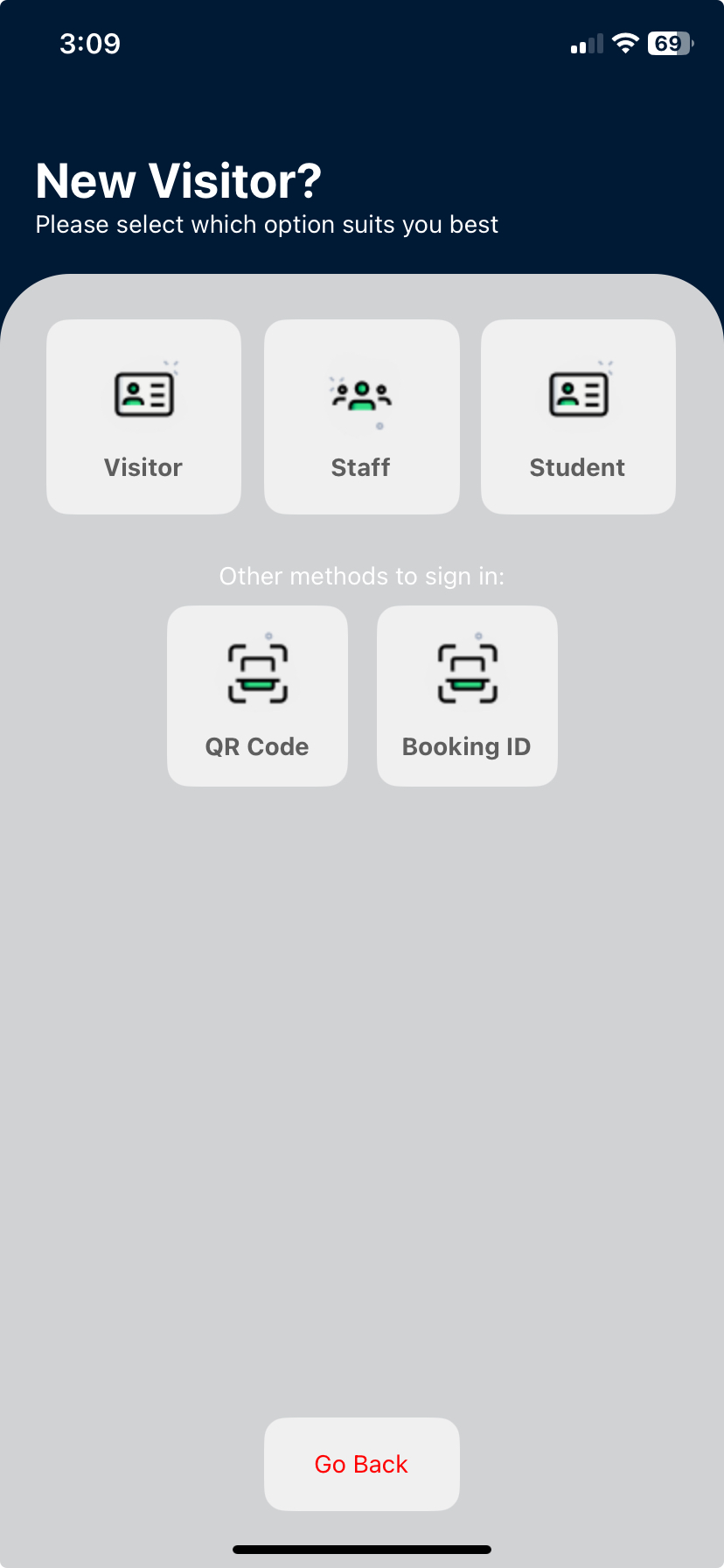
- From a VisitorBook terminal, click Arriving.
- On New Visitor page, click Booking ID.
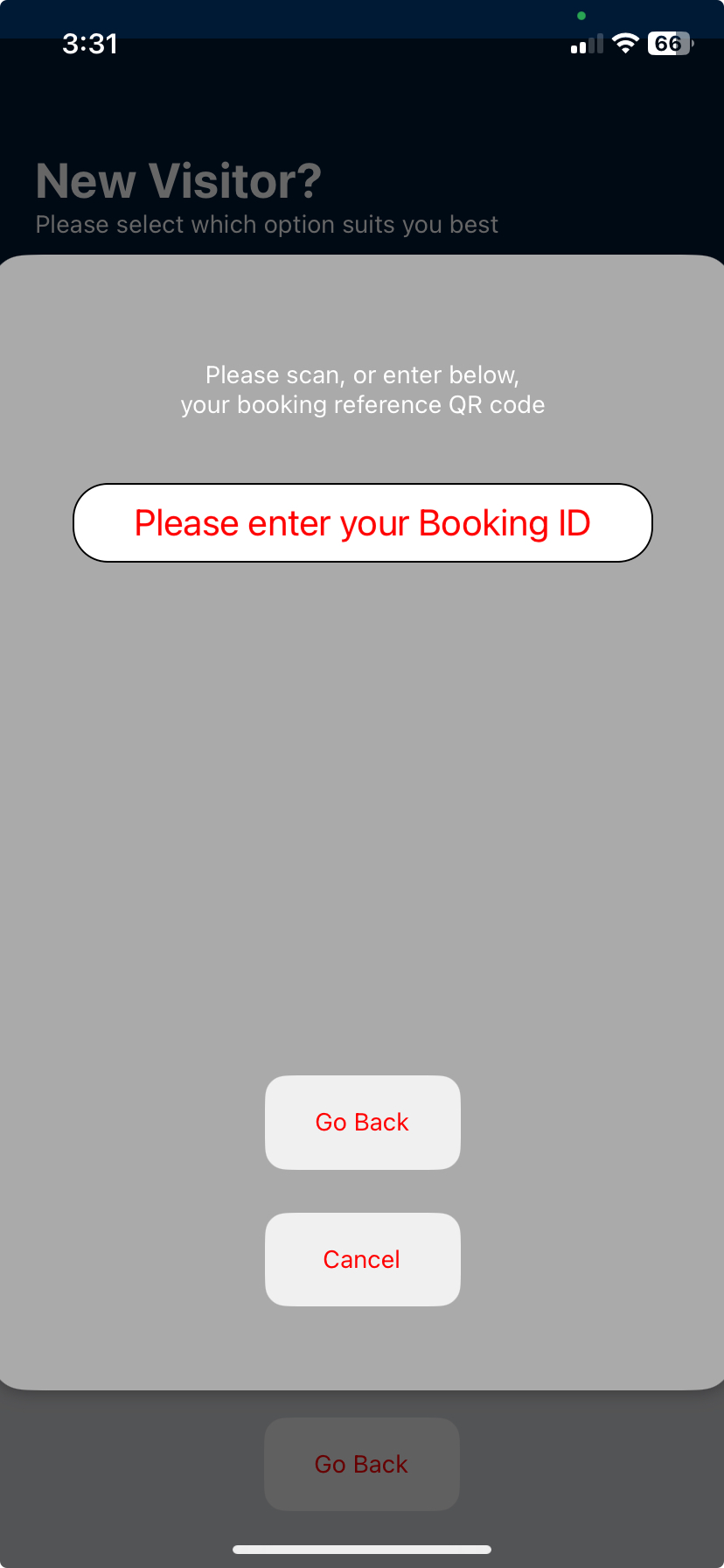
- In the Booking ID field, add the unique reference for the event.
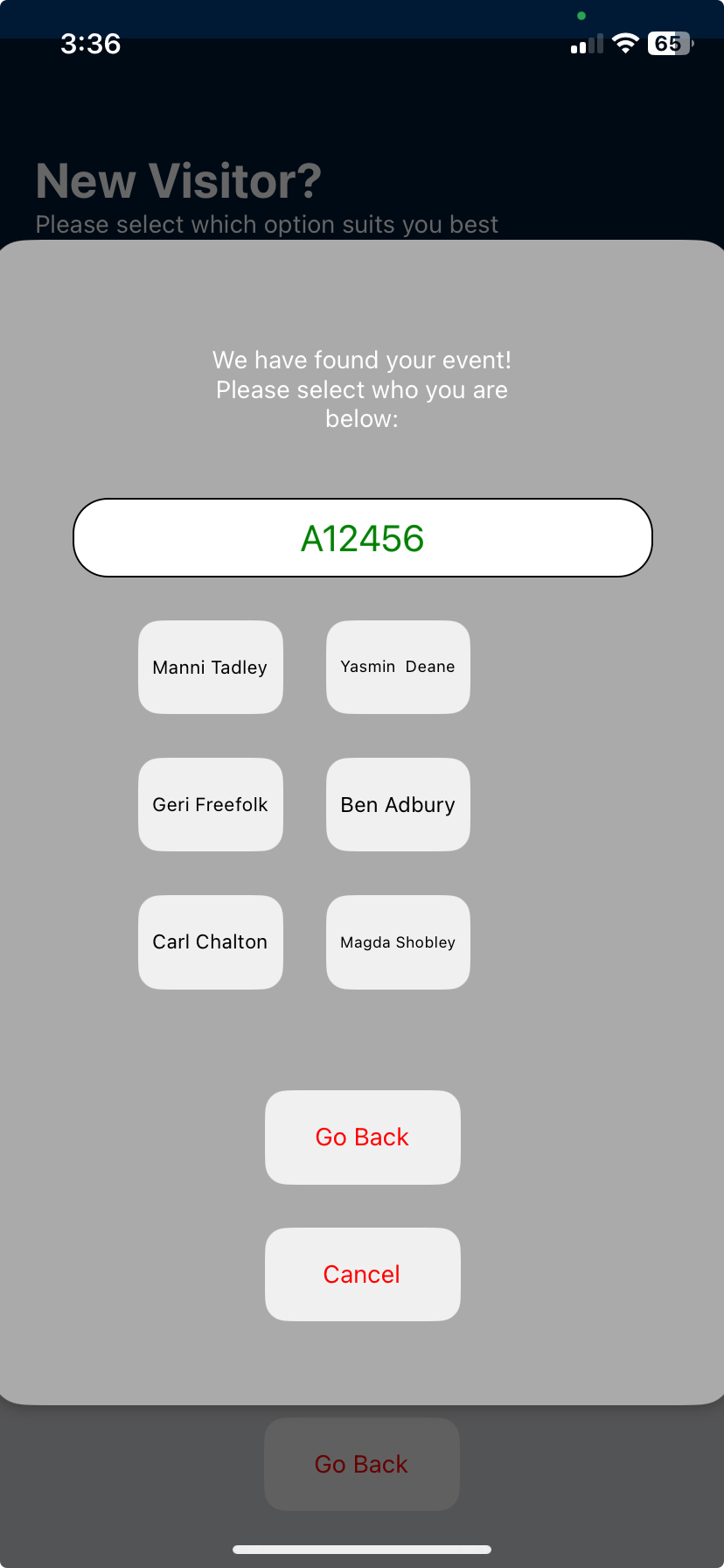
- A list of attendees is shown.
- Choose the relevant name. The usual sign-in page opens. The name fields are pre-populated.
- The visitor can then continue to take their photo and sign in as usual.
- A visitor label containing a QR code is printed.
Important:
- You will need to have already created an event and registered visitors against that event to allow visitors to sign in using a Booking ID.
- The names of all registered attendees display when the visitor enters the booking ID.
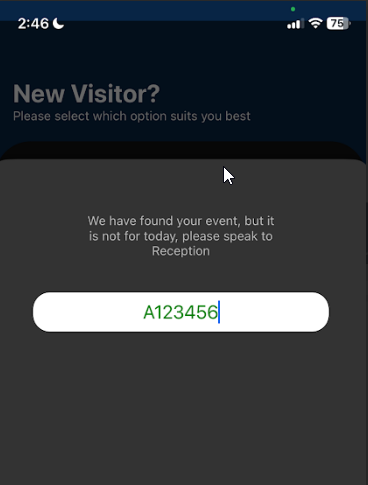
- Registered attendees cannot sign into an event before the day. If they do, they will see an error message.
- Visitors who are not registered for the event cannot sign in using the Booking ID.
Tip: The system will recognise a unique booking reference after the fourth or fifth character is added.
Learn more: Add an Event
Sign out #
There are multiple options for signing out people.
Learn more: Sign out visitors
© Libresoft 2026