
No label printer, no problem! Print or export QR codes direct from the Admin Portal.
How are QR codes used in VisitorBook? #
QR codes are printed on visitor labels generated when people sign in. These same QR codes can be used for signing out. Visitor labels are usually printed with a label printer connected to a sign-in terminal.
Options for generating QR codes from Admin Portal #
You have two options for generating QR codes for people:
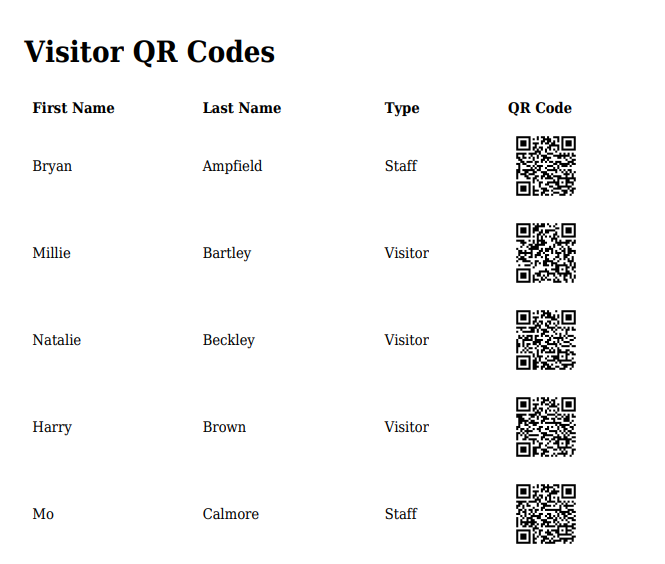
- Print PDF – this creates a single PDF document containing all selected QR codes.
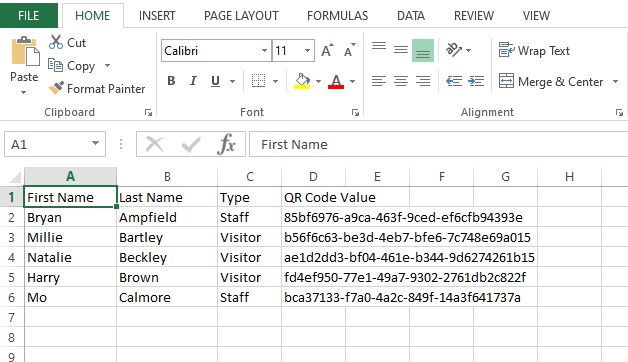
- Export CSV – this creates a CSV file showing the QR code values (i.e. a string of numbers and letters).
Generate people QR codes from Admin Portal #
- Log into your Admin Portal.
- Navigate to the Manage People page.
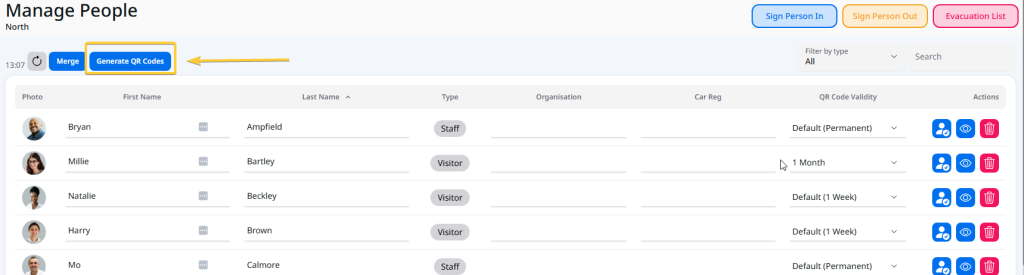
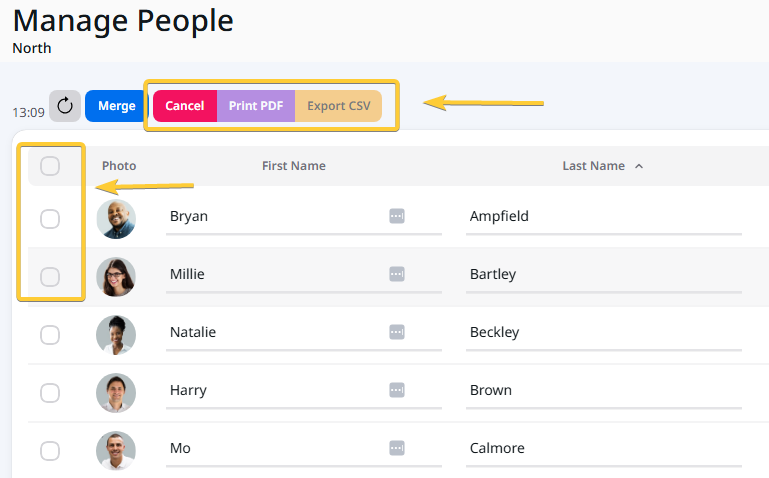
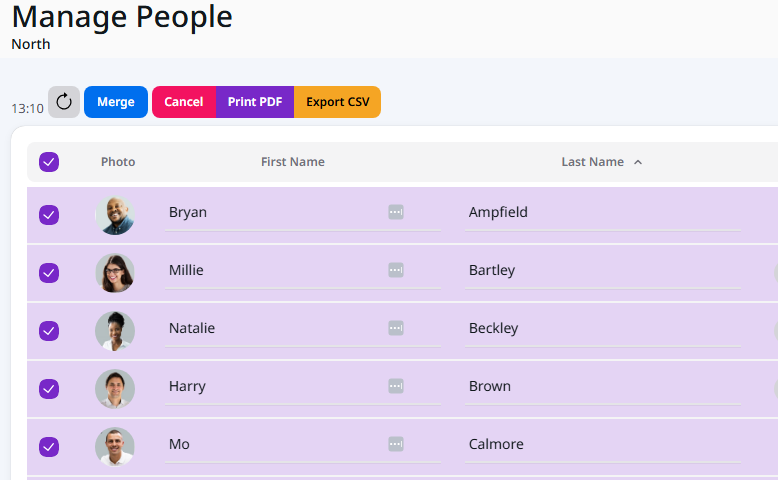
- Click the Generate QR Codes button. This opens up the button to display the following options: Cancel; Print PDF; Export CSV. At the same time, this also opens up an additional tick box column to enable you to select specific people.
- Before clicking on your selected export/print option, select the required people by clicking the tick box next to their names.
- When you have selected all the people you need, click either Print PDF or Export CSV.
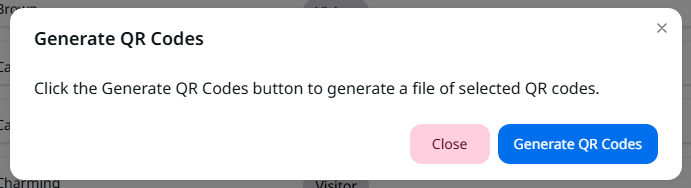
- The system will display a popup asking you to confirm the required action. Click the Generate QR Codes button if you are happy with your selection.
- The system exports the selected file. It will appear in your downloads folder.
Tips:
- Make it easier to select only the people you need by filtering the page by visitor type before generating codes.
- Use the Search function to find a specific user if you only need one or two codes.
- Click on the tick box in the column header to select all the people on the page.
Note: The Manage People page shows all people who have ever signed into VisitorBook. It is not just the people onsite that day.
Important: Generating QR codes can be a resource-intensive process. Delays may occur if the files are very large.
© Libresoft 2026