
NEW! Customise your email invites to event attendees.
Before you begin #
- Make sure you are familiar with how event notifications work.
- This guide assumes you have successfully navigated to the system page for your specific event.
- You will need to have toggled on Event Notifications on the event page to get started.
Learn more:
Features of Event Email template #
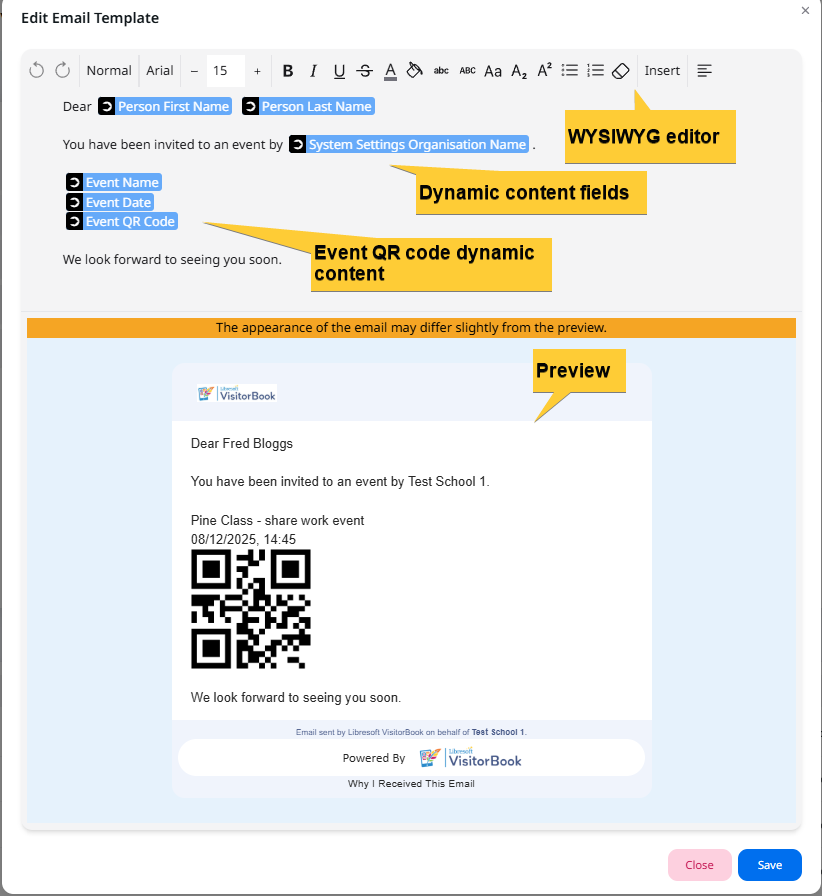
The main features of the event email are set out below.
- A What You See Is What You Get (WYSIWYG) editor to format the text.
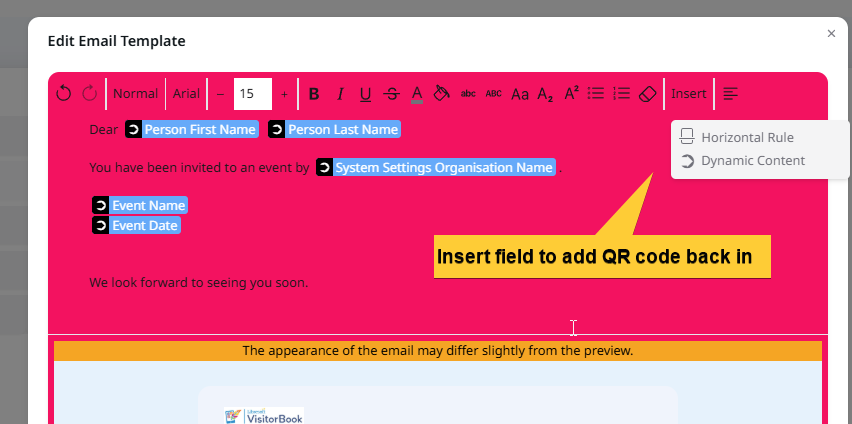
- Dynamic Content fields allow you to autofill certain information such as recipient name and event details. Options can be found in the Insert option on the WYSIWYG editor.
- An Event QR code dynamic content field. This field is required to enable event attendees to use specific event QR codes for signing in. Important info on these can be found in the Event QR code section.
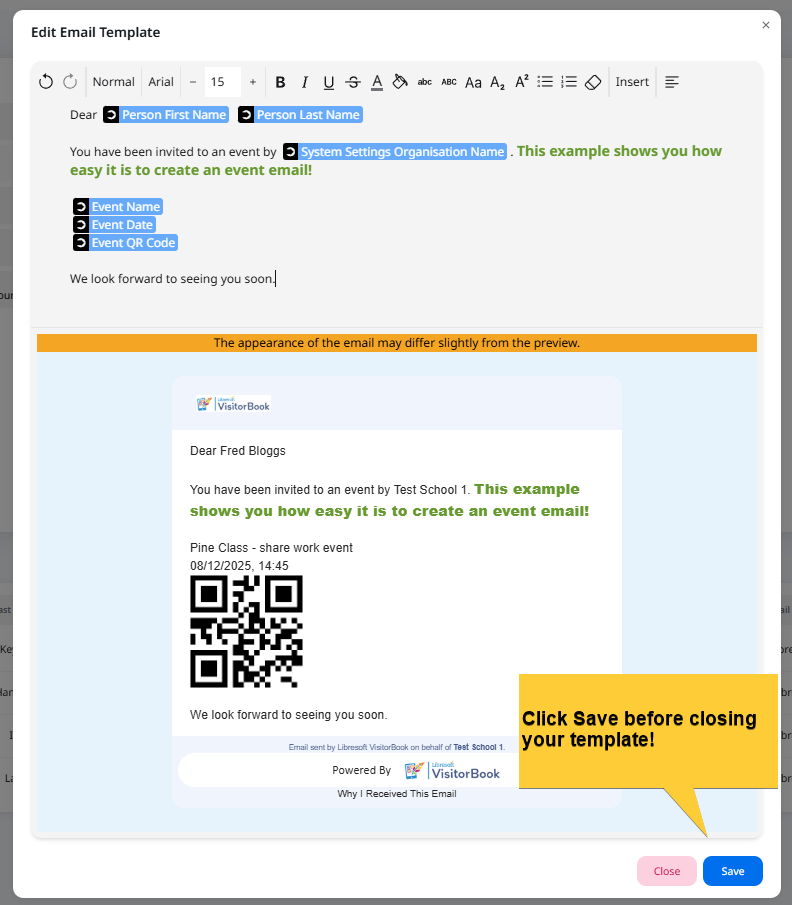
- A preview of how the email will appear to the recipient.
Important: The preview is indicative only. Appearance may vary due to different email clients or individual settings.
Features of an event email #
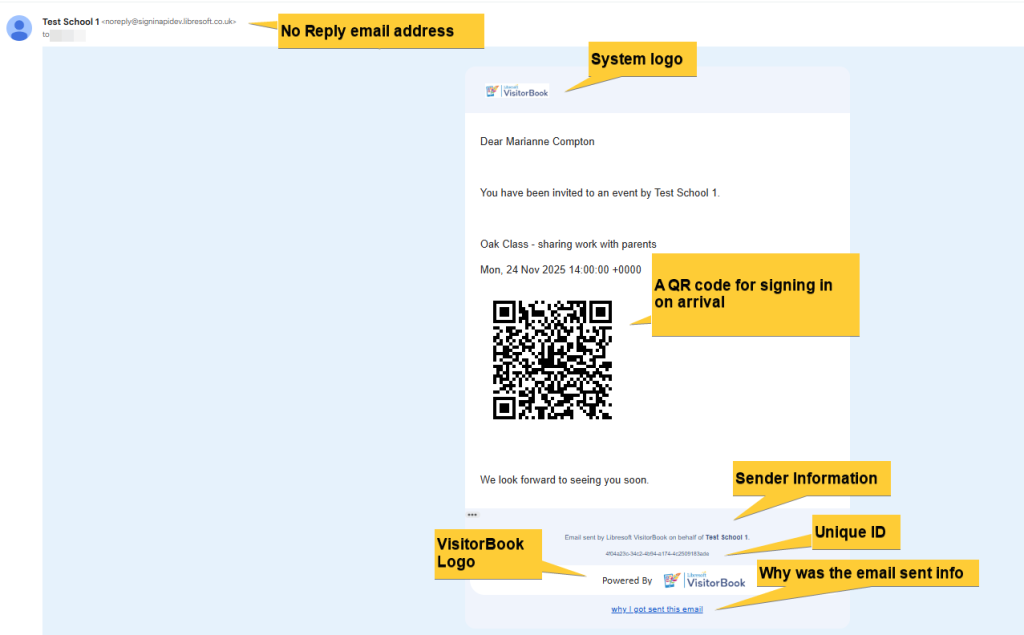
The event email contains the following features:
- The email is sent from a No Reply email address.
- A logo, automatically populated based on the logo in your VisitorBook System Settings.
- A QR code for signing in on arrival. Important info can be found in the Event QR code section.
- Sender information. This is non-editable.
- A unique ID – This is for Libresoft’s use and is non-editable.
- A VisitorBook logo – non-editable.
- A link to information about why the email was sent.
Understand Event QR codes #
Each event email contains a unique QR code used by your visitors to sign in on arrival. This makes the sign-in experience smoother and more efficient. It also ties the person’s visit to the event.
There are some important features to note on QR codes. These are set out below.
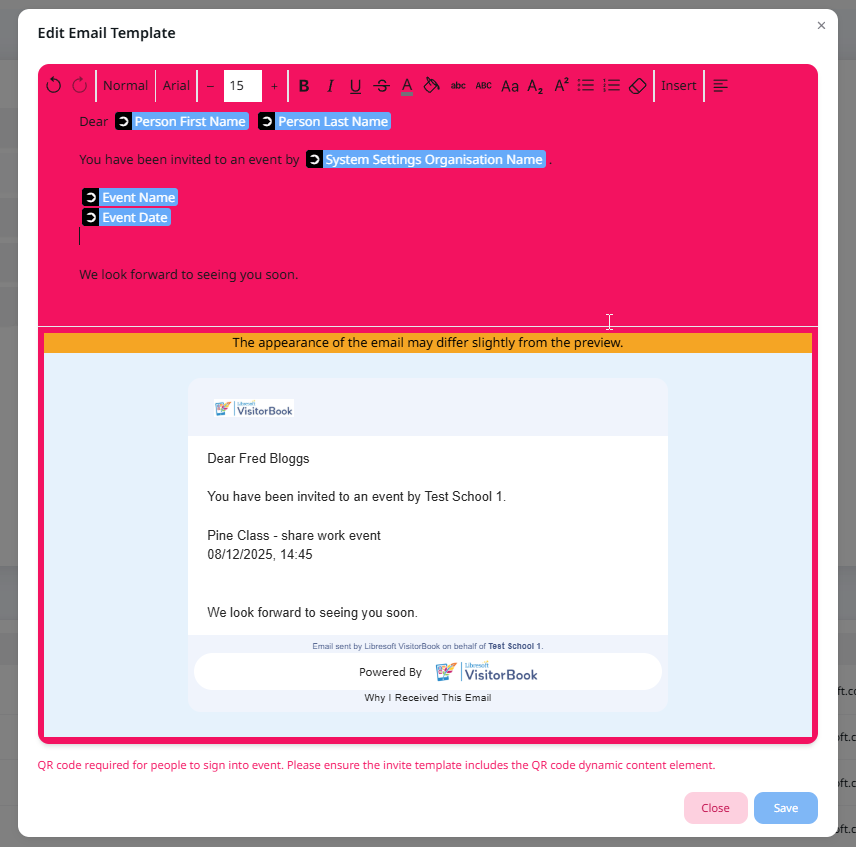
- You cannot remove the QR code dynamic content field from the email template. If you try this, the system alerts you and will not let you save the template without a QR code.
- Visitors signing in on a terminal will only be able to use the event QR code to sign into a specific event. You may have frequent visitors who have reusable QR codes already. However, these general QR codes cannot be used to sign into an event.
Tip: Inadvertently removed the Event QR code dynamic content? Simply add it back using the Insert option in the What You See Is What You Get (WYSIWYG) editor to correct the error.
Set up your event email #
| Step | System Action | Notes |
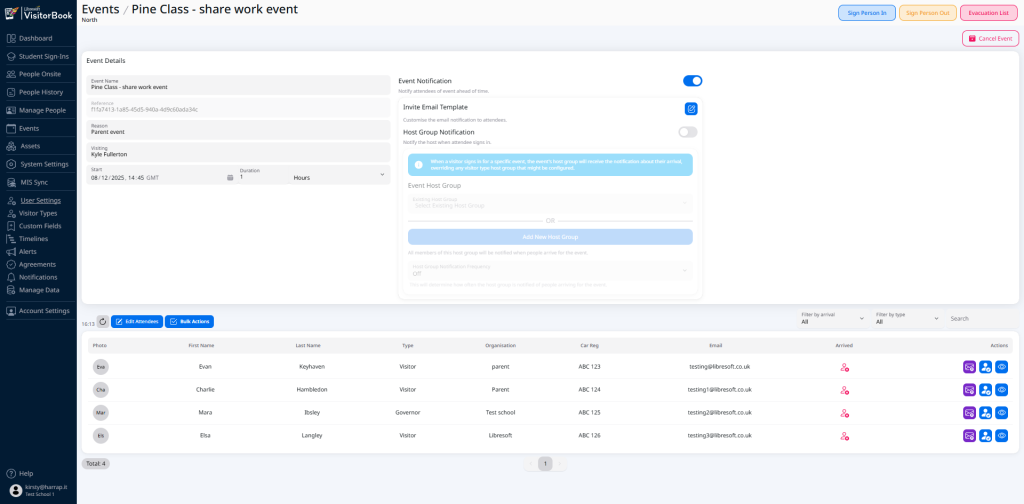
| Click on the Edit icon next to Invite Email Template. | The system opens up the Edit Email Template popup. There you will see a default email template ready to be edited. | |
| Understand the features and important requirements for event emails before you begin! | Skipped ahead? This info can be found in previous sections. – Features of Event Email templates – Features of event emails – Understand event QR codes | |
| Edit the event email template. | The preview shows you how your edits may appear to the recipient. | |
| Once you are done, click the Save button. | The system closes your saved email template. | Don’t click away from the Edit Email Template without clicking the Save button. It’s an essential step! |
© Libresoft 2025