
COMING SOON! Alert meeting hosts that their guests have arrived with an instant email notification.
Intro to Host Notifications #
The Host Notification feature allows you to email a host or host group when a visitor arrives and signs into your VisitorBook system.
Host notification types #
There are two types of host notifications in your VisitorBook system.
| Type 1: General host notifications | Type 2: Event host notifications |
| These are linked to visitor types and are sent to hosts when visitors that match specific types sign in. | These are linked to specific events and are sent to hosts when attendees for that specific event sign in. |
Important: Event host notifications (Type 2), if set, override general host notifications (Type 1).
The rest of this guide covers Type 1 – general host notifications. Event host notifications are covered in a separate guide.
Learn more: Event host notifications
Host Notifications basics #
- Simple interface. Host notification emails are managed on a new Notifications page, located under the User Settings menu.
- Automated. A general host notification email is automatically sent to hosts when people sign into your VisitorBook system.
- Aligned to visitor types. You can set up host notification emails for some types of visitors and not others.
- Not customisable. It is not currently possible to edit these host notifications.
Host notification emails #
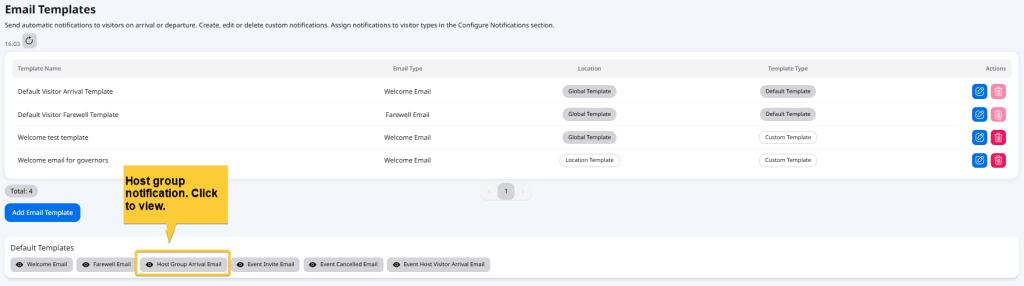
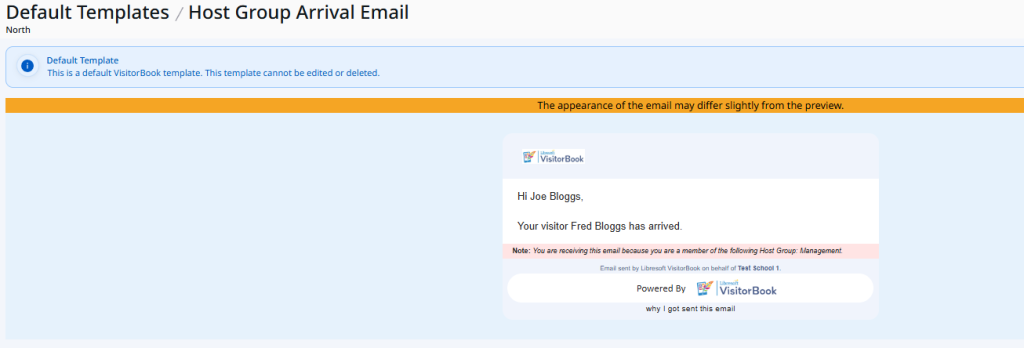
Only one email option is provided for host notifications. To view this:
- Go to User Settings > Notifications.
- Navigate to the Email Templates section.
- In the Default Templates section, look for the email titled Host Group Arrival Email.
- Click on this email to view it.
Important: It is not currently possible to edit or customise the default host notifications email in any way. You also cannot add additional host group email templates.
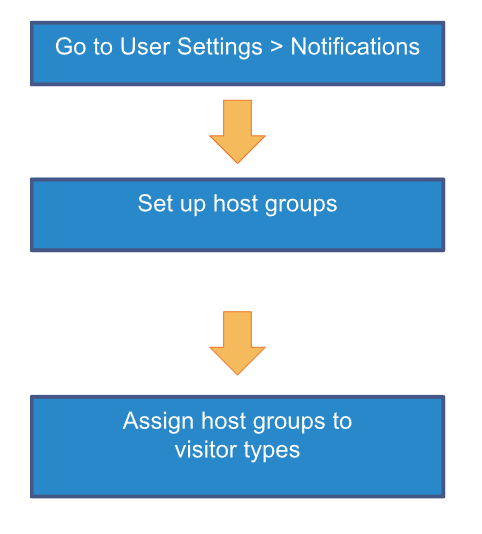
Host Notification emails – overview of setup process #
The image below shows the overall process for setting up host notification emails.
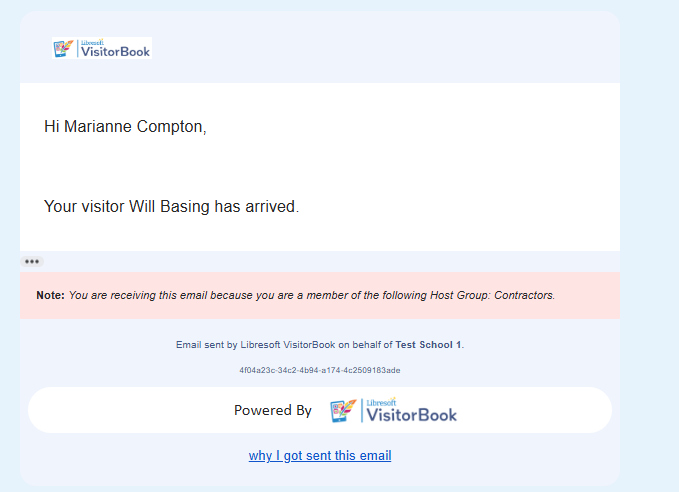
Example of host notification #
Host notification alerts on your VisitorBook Dashboard #
Check on your Dashboard whether the host group has been notified.
Important: Your VisitorBook system can only indicate that a notification appears to have been sent successfully based on the presence of an email address for at least one host group member. It cannot tell you whether the email entered into the system for that person was accurate, or whether it was successfully received or seen.
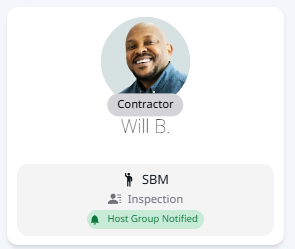
Tip: You can also see the status of the host notification in the following places on your VisitorBook system.
- Manage People > visitor’s profile
- Notifications > Notification History
Learn more:
- Host notifications – set up host groups
- Host notifications – assign host groups to visitor types
© Libresoft 2025