
NEW! You now have more options to tailor VisitorBook to your exact requirements. We’ve made it easier for you to customise the fields visitors complete on signing in.
What are visitor fields? #
In VisitorBook you create different groups of visitors (visitor types). These types appear on the sign-in terminal.

You can adjust sign-in settings so that different visitors provide different information when they sign in. For example, general visitors are required to provide their car registration; staff members are not. You set up visitor fields to capture this information for different visitor types.
Visitor types and visitor fields are managed on the VisitorBook Admin Portal.
Standard visitor fields #
Each visitor type has the default visitor fields of First Name and Last Name.
Important: First Name and Last Name are required fields. These cannot be deleted for any visitor type. In addition, Reason is required for student sign-ins.
View visitor fields #
Go to User Settings > Visitor Types. Here you will see existing visitor types in the system. Visitor fields linked to each type are shown in the Visitor Fields column.
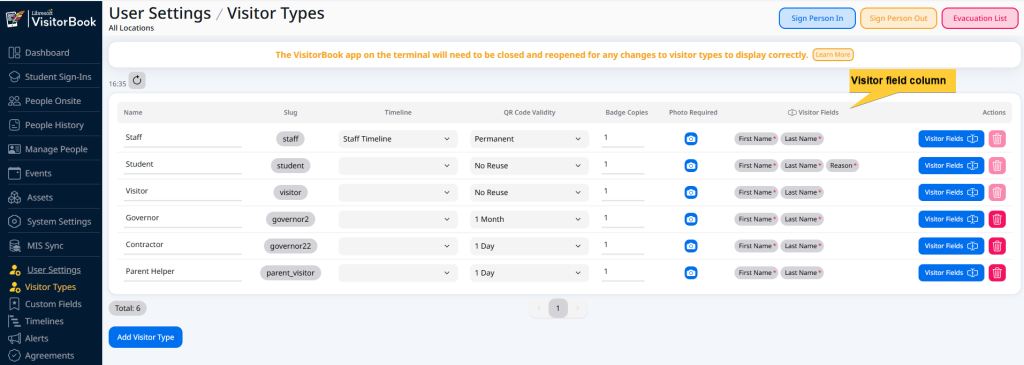
Edit visitor fields #
To edit visitor fields:
- Find the visitor type you want to edit.
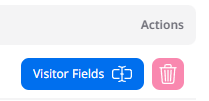
- Click on the Visitor Fields button in the Actions column.
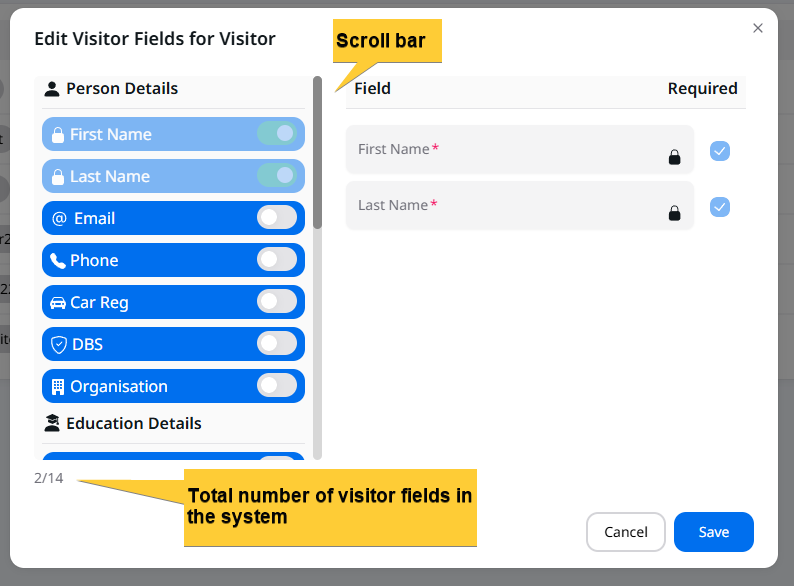
- The Edit Visitor Fields popup opens. This shows:
- Visitor fields available in the system. Shown on the lefthand side of the popup.
- Visitor fields currently set for the visitor type. Shown on the righthand side of the popup.
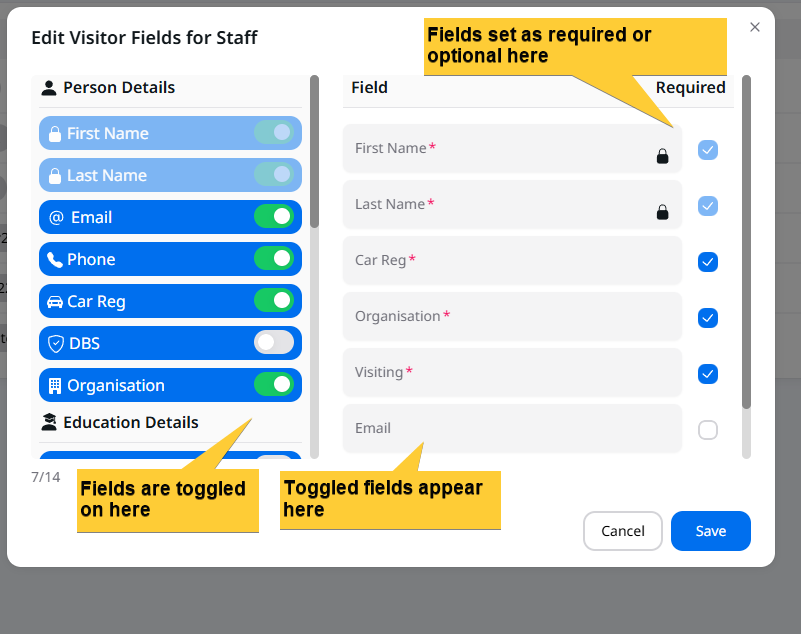
- The Required column. This is ticked if the visitor MUST complete the field to sign in. It is unticked if the field is optional to complete.
- To add or remove a field to a visitor type, simple toggle the field on or off. Fields that are toggled on appear on the righthand side of the popup.
- Ticked fields are those the visitor must complete to sign in. Untick a field if you’d like it to show to visitors but it is optional to complete.
- Click the Save button once you have set up visitor fields to your requirements.
Note: Fields are ticked as default.
Important:
- You can show a maximum of 14 fields on the sign-in terminal.
- You must click the Save button to apply the changes to the fields.
Custom fields #
If you have the Custom Fields Module, you can add extra sign-in fields that are bespoke to your VisitorBook system. See these on the Edit Visitor Fields popup. You can adjust these for specific visitor types just like the standard visitor fields.
Learn more: Custom Fields
Check updated settings are on VisitorBook app #
The final step is to close and reopen the VisitorBook app on your sign-in terminal(s). This makes sure that setting changes are added to the app.
© Libresoft 2026