
NEW! It’s simple to manage host groups.
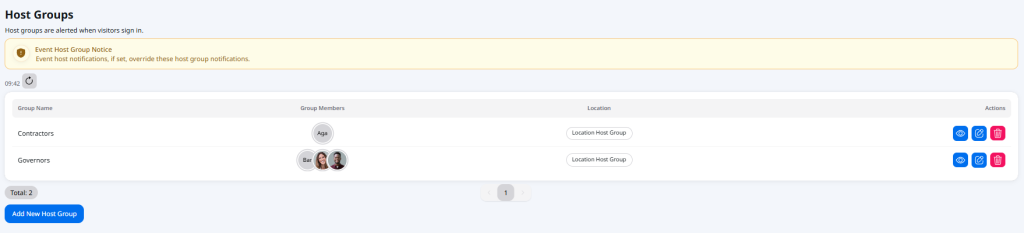
View host groups #
- All standard host groups are set up on the Notifications page (User Settings > Notifications).
- Go to the Host Groups section. There you will see the host groups created on your system.
Important: Looking for info on event host notifications? These are different from standard host notifications and are set up in a different way.
Learn more:
View host group members #
To simply view host group members:
- Go to the Notifications page (User Settings > Notifications).
- Go to the Host Groups section. There you will see the host groups created on your system.
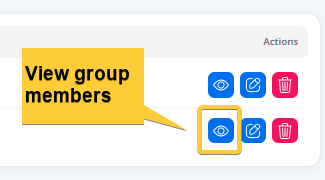
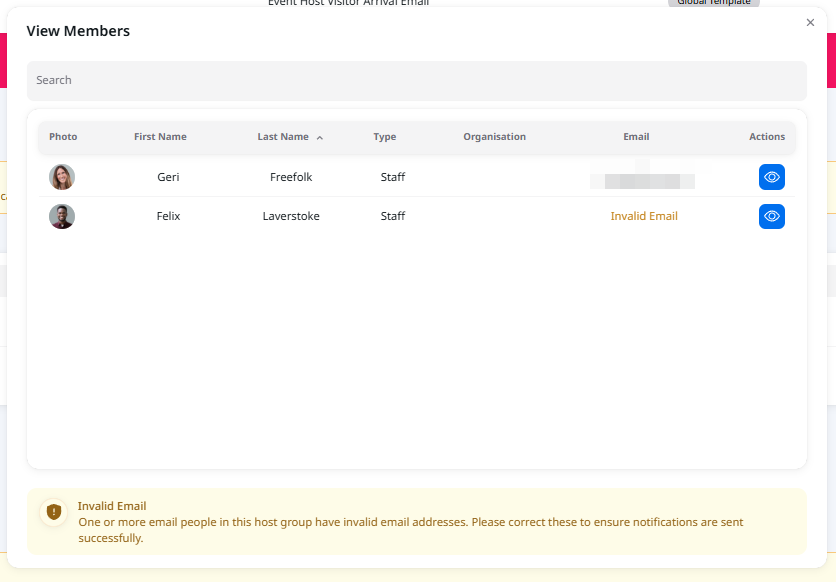
- Click on the View Members icon in the Actions column. You can then view the list of host group members.
Edit host group members #
To add, remove or edit host group members:
- All standard host groups are set up on the Notifications page (User Settings > Notifications).
- Go to the Host Groups section. There you will see the host groups created on your system.
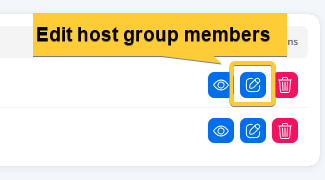
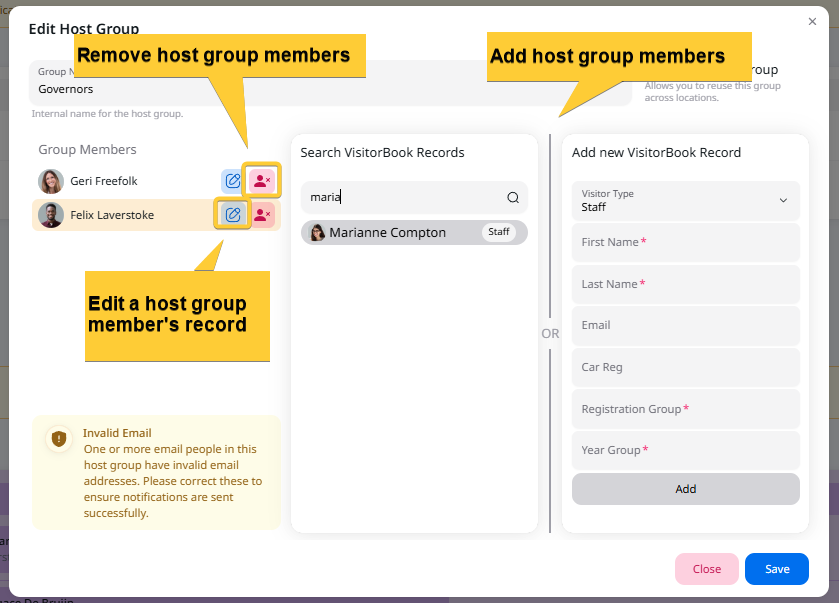
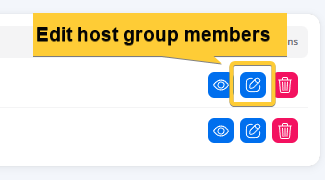
- Click on the Edit icon in the Actions column. The Edit Host Group popup opens.
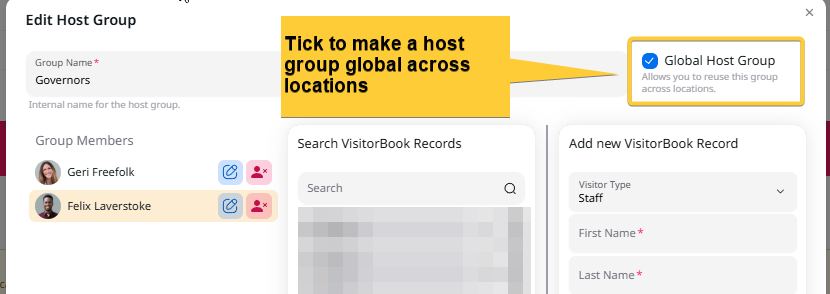
- To add group members, search VisitorBook records. Or use the Add a new VisitorBook record section. Group members are listed on the lefthand side of the popup as you add them.
- Remove group members by clicking on the Delete Group Member icon next to the person’s name.
- To edit the details for a specific group member (for example, adding the person’s email address), click on the Edit icon next to that person’s name in the Group Members list. The person’s VisitorBook record opens in a new browser tab.
Remove a host group #
- Go to the Notifications page (User Settings > Notifications).
- Go to the Host Groups section. There you will see the host groups created on your system.
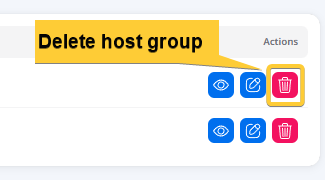
- Simply click on the Bin icon in the Actions column next to the host group to delete it.
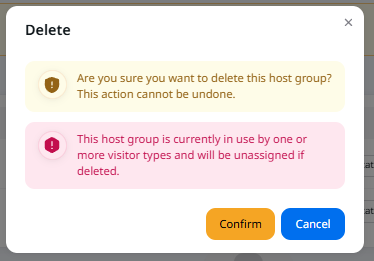
Important: The system alerts you if the host group is still assigned to a visitor type when you delete it. You can carry on deleting the host group if you wish. The system will unassign it from the visitor type, leaving the field empty. This means that host group notifications won’t be sent for that visitor type.
Set host groups across locations #
Note: This option is only relevant if you have the Locations module and manage multiple locations on your VisitorBook system.
By default, host groups are set up per location, depending on which location you were logged into at the time you set up the host group. So the host group is only notified if visitors arrive at that particular location.
With the Location module, you have the option to make a host group global across all locations. This means that the same host group is notified no matter which location visitors arrive at.
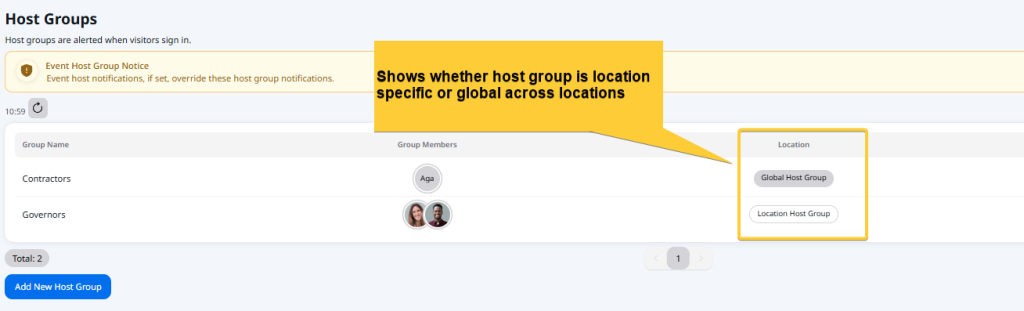
You can see the status of the host group (i.e. whether it is global or location-specific) in the Locations column.
To set a host group as a global one:
- Go to the Notifications page (User Settings > Notifications).
- Go to the Host Groups section. There you will see the host groups created on your system.
- Click on the Edit Host Group icon in the Actions column next to the host group. The Edit Host Group popup opens.
- Tick the Global Host Group option in the top right of the popup.
- Click the Save button.
© Libresoft 2026